Chapter 11 Result Download and Management
11.1 Automatic Download Mechanism
By default, each frame will start downloading to the local render output path set in the software immediately after rendering is complete. If you need to disable this function, you can uncheck the "Download results immediately after rendering" option in "Settings" (not recommended to modify).
11.2 Download Function Operations
11.2.1 Job List Functions
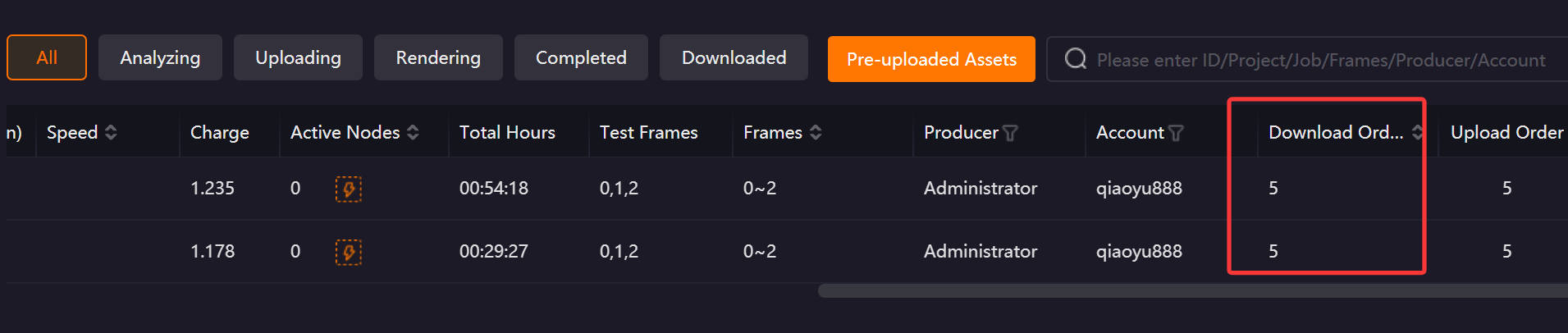
Download Order
To adjust the download order of jobs, you can modify it in the "Download Order" column of the client before job download is completed. The priority range is 10–1, decreasing step by step. The default priority for all jobs is 5.
View Result
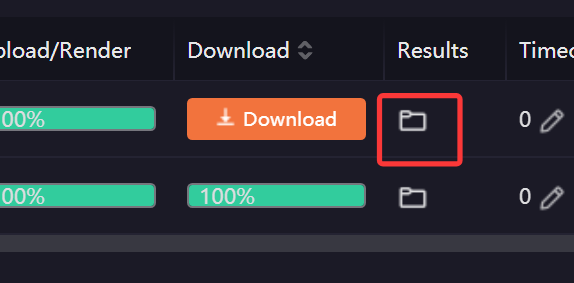
Click the "folder" button in the Results column to quickly open the save location of the current job results.
Download Path Does Not Exist
For locally submitted jobs: When the drive letter of the download path does not exist, clicking the Start Download button will trigger a pop-up window displaying the current output path and providing a path configuration option. Click the "Set up Path" button in the pop-up to reset the output path.
For team jobs: When the drive letter of the download path does not exist, clicking the Start Download button will trigger a pop-up window displaying the current output path and providing two methods for setting the path. Select "Set up Path" to reset the output path for the current job. Select "Set up Path Uniformly" to navigate to the "Team Job Download Path" settings page, where you can uniformly configure the download path for all team jobs.
11.2.2 Right-Click List Functions
Download Verification
If result files are missing after job download is completed, or result files are accidentally deleted, you can use the "Download Verification" function to re-supplement the download. This function applies to jobs submitted within 7 days.
After the job has rendered at least one frame and started downloading, right-clicking the job list will display the "Download Verification" button. You can choose "All" or "Partial Frames" as needed.
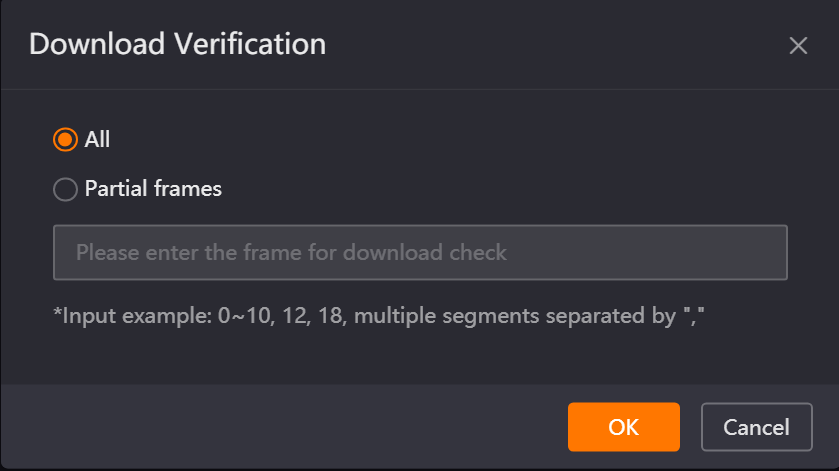
Note: 3ds Max jobs only support All.
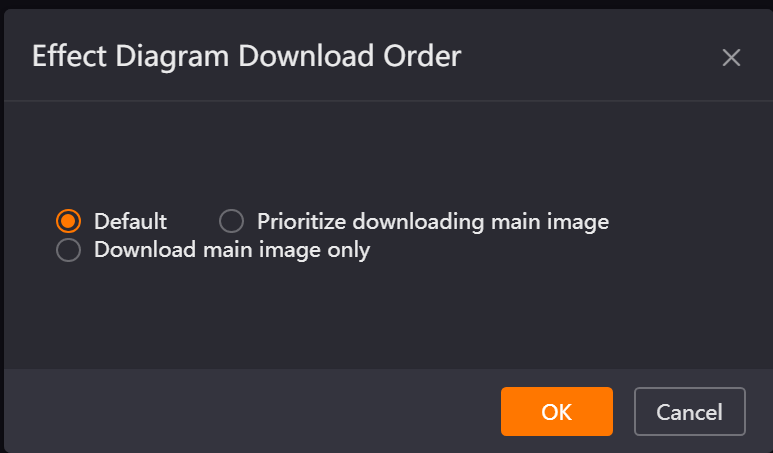
Effect diagram download order
This function is only for 3ds Max still jobs. If multiple render elements are added and you need to prioritize downloading the main image, it is recommended to select "Prioritize downloading main image"; if you only need to download the main image results, it is recommended to select "Download main image only".
Usage method: Before downloading job results, select the target job, right-click the job list, and choose "Effect diagram download order" in the menu to set the download method for this job individually.
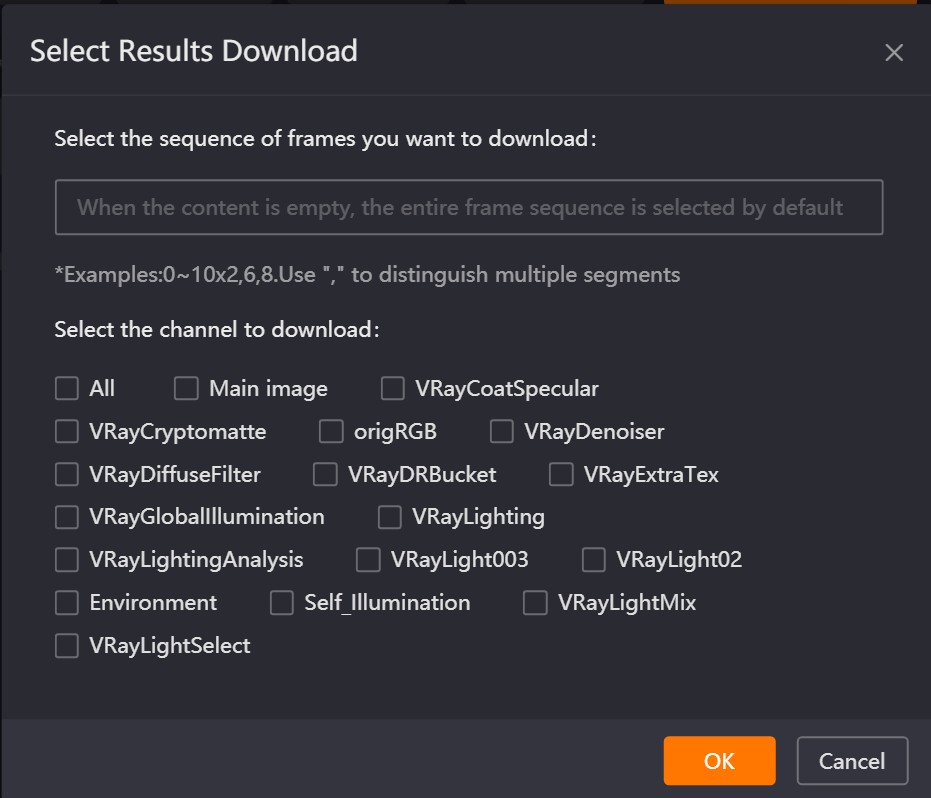
Select results download
This function applies to Maya / Houdini / Clarisse / Cinema 4D / 3ds Max animation jobs. If you only need to download partial frame results or a certain type of result, you can right-click the job and choose the "Select results download" function for refined downloading after the job has downloaded at least one frame of results.
Save Intermediate Result
This function is only applicable to 3ds Max still jobs, divided into VRay and Corona two scenarios.
-
3ds Max VRay Job
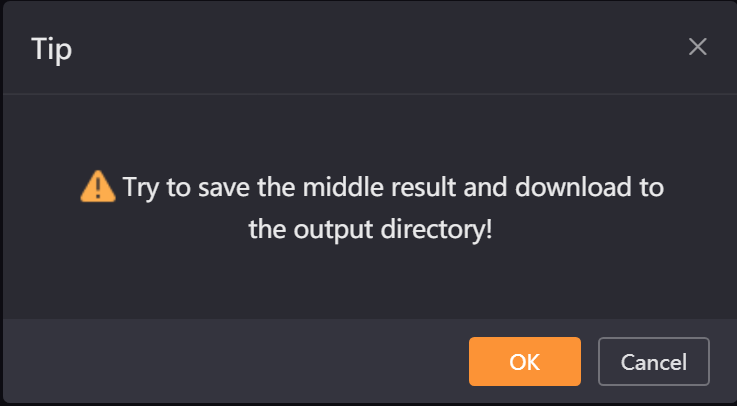
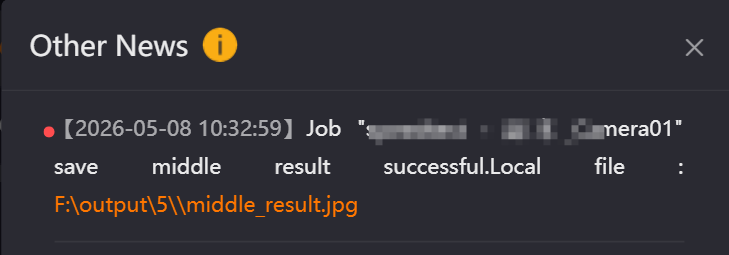
When the job is Rendering, select the job and right-click, choose "Save Intermediate Result" to save the current render progress results to the output path. After successful save, the system will give a prompt, and the job will continue rendering.
Note: If you need to stop the job, you need to separately click the "Stop" button. After stopping, the current render state cannot be restored. Please operate with caution, and you can contact customer service for assistance if necessary.

-
3ds Max Corona Job
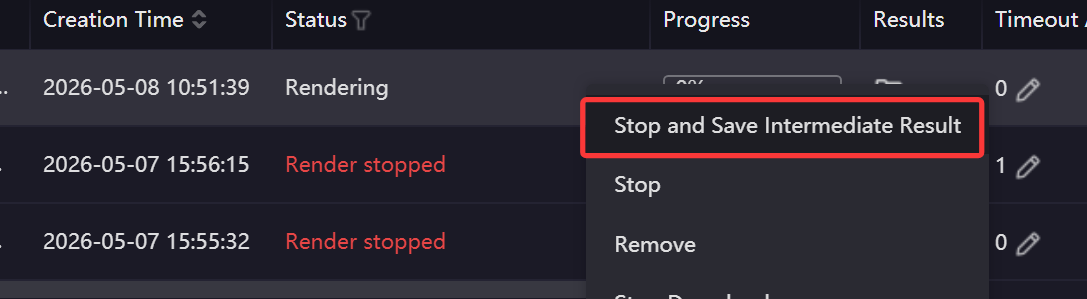
When the job is Rendering, select the job and right-click, choose "Stop and Save Intermediate Result " to save the current render progress results to the output path. After successful save, the job will stop rendering, and the results will display the "Download Completed" status after download.
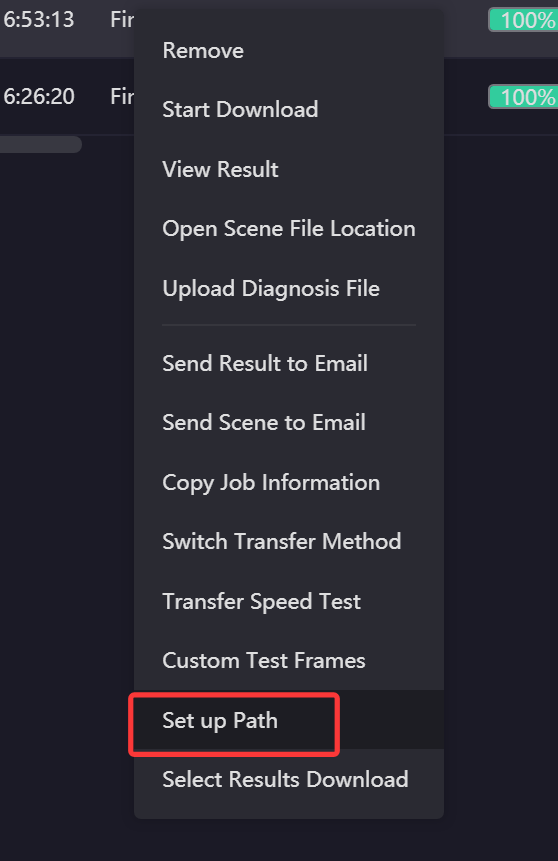
Set up Path
Select the job and right-click "Set up Path" to modify the download directory for the rendering results. If the download has not yet started, the files will be saved directly to the new path; if part of the content has already been downloaded, the completed files will remain in the original directory, while the remaining content will continue to be downloaded to the new path. It also supports selecting multiple jobs to set a new path simultaneously.
Usage precautions:
-
If it is a synchronized job, after using the "Set up Path" function, the "Team Path" in the Settings interface will not be appended.
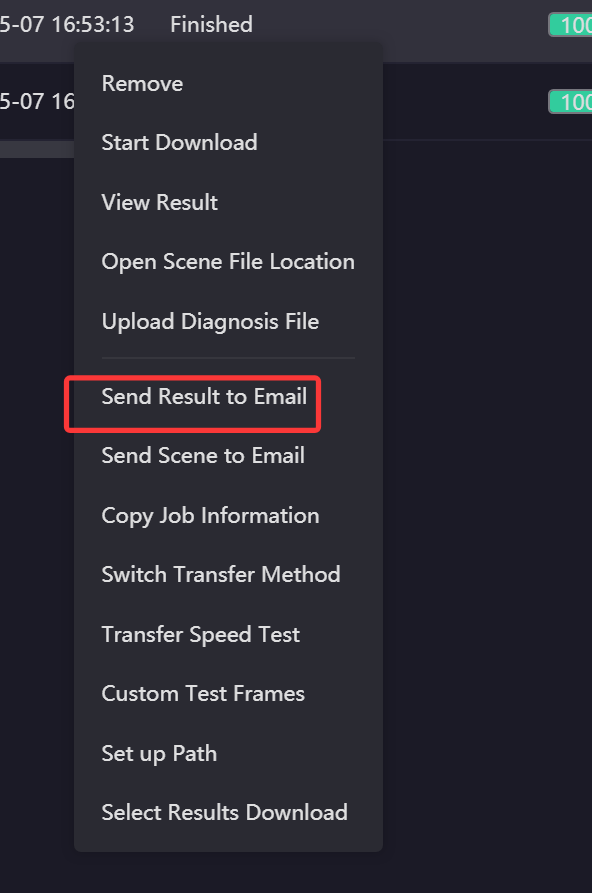
Send Result to Email
If you need flexible downloading of results, you can use the "Send Result to Email" function. The system will send a download link for the result compressed package to the email you fill in. The link is valid for 24 hours; please download in time.
11.2.3 Settings Interface Functions
File Renaming
When the downloaded file name duplicates with an existing local file, you can modify this option in the Settings interface according to actual needs.

When selecting "Rename original file":
-
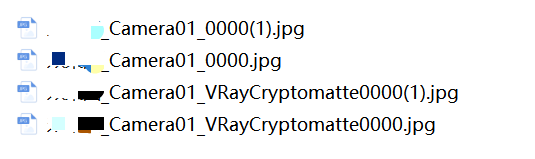
Still results: A serial number will be appended after the file name, in the format filename(n).
-
Animation results: A serial number will be added before the file name, in the format (n)filename.
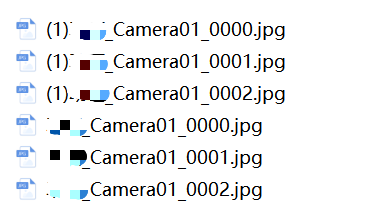
Note: When selecting "Overwrite original file", it will directly overwrite existing local render results. Please choose carefully.
download order (Global Setting)
This function is only for 3ds Max still jobs, used to uniformly set the global download order. All newly submitted 3ds Max still jobs will follow this order, and you can also modify it for individual jobs in the right-click job menu.

Team Job Download Path
To uniformly manage the download paths for synchronized team jobs, you can set the "Team Job Download Path". Once configured:
If "job Number" is selected, a subfolder named after the job number will be created under the team path to store the results.
If "Default" is selected, the actual download path for team job results will be a concatenation of the Team Job Download Path and the original output path configured in the rendering software.
Example:
If the output path in the software is D:\abc\def, and the team path in the client is set to D:\newpath:
Selecting "job Number" will download the final results to: D:\newpath\{job Number}Selecting "Default" will download the final results to: D:\newpath\D:\abc\def
Transfer Timeout (s)
The default timeout is 15 seconds. If the transfer speed is zero for 15 consecutive seconds, the system determines a transfer failure and will automatically stop the current transfer process and re-initiate the transfer. Applicable to both job upload and result download scenarios.
Note: Generally not recommended to modify this value. If the network is unstable, you can appropriately extend the timeout time, recommended not to exceed 60 seconds.

Download Thread Allocation Strategy
Used to control the thread allocation method for download jobs. The default is "Download jobs one by one", where the system concentrates all threads to download the highest priority job one by one. If you need multiple jobs to download simultaneously, you can change it to "Download multiple jobs concurrently". Note: When downloading multiple jobs simultaneously, the download progress of individual jobs will slow down. Please choose according to your needs.

Download Thread Count
The default value is 3, with an allowable modification range of integers from 1 to 10. It is generally not recommended to modify this; keeping the default value is the optimal option.
