
 3ds Max
 Blender
 Keyshot
 Cinema4D
 SketchUp
 Rhino
Rhino Maya/Houdini/Clarisse/Katana/

Client Submission
Drag-and-Drop – Single Job Submission (Max 2016 and Above)
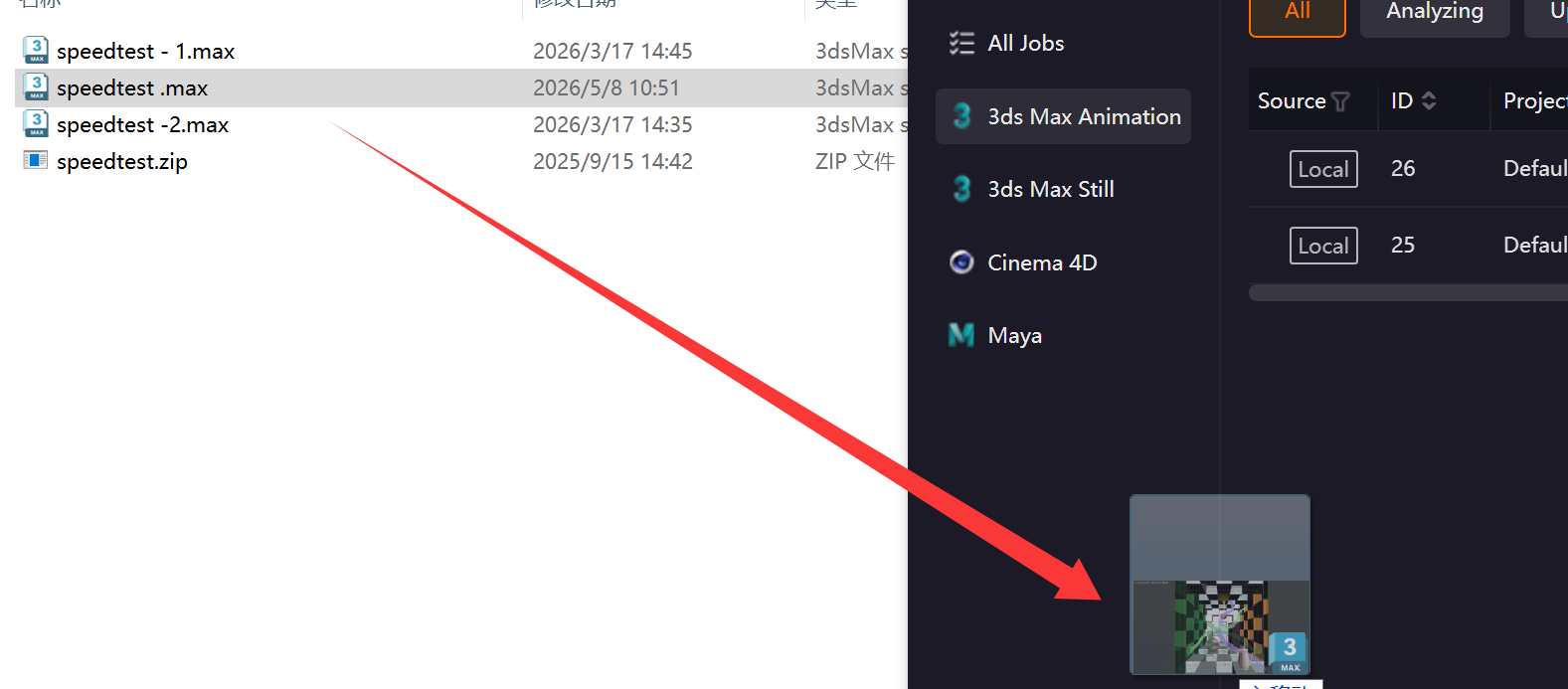
1. Drag Scene to Client
Set the scene to animation mode and drag the .Max scene file to the client.
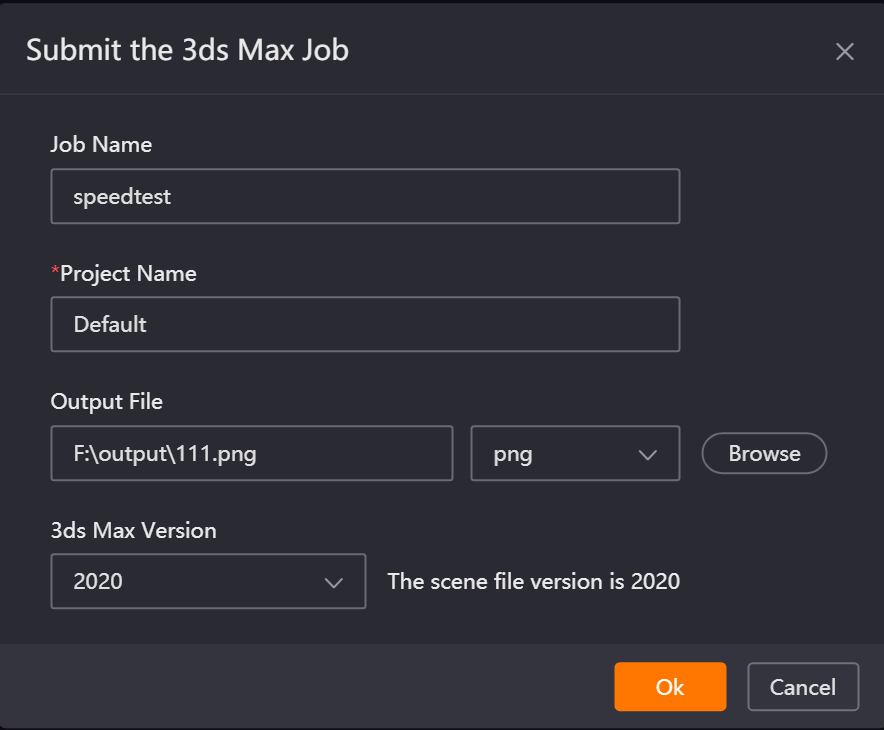
2. Configure Parameters and Analyze Scene
In the submission job page, configure the job name, Project Name, output file path and format, and 3ds Max version number, then click OK to enter the job analysis phase and launch 3ds Max.

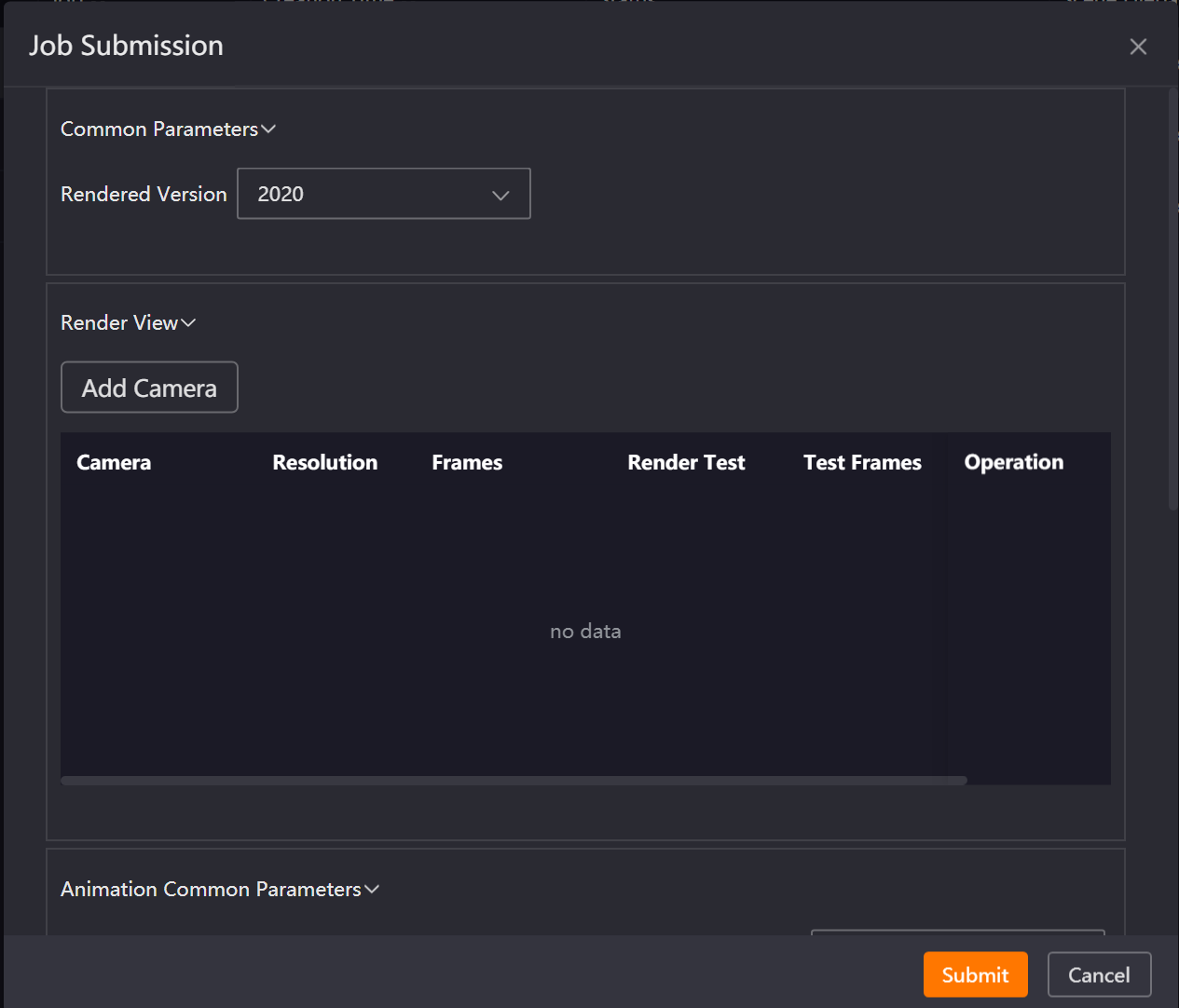
3. Configure Render Parameters
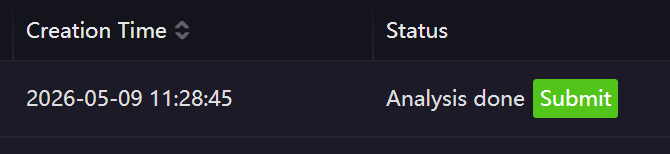
After analysis is complete, click the "Submit" button to open the submission window. In the submission window, add the camera to render and configure the corresponding parameters, then click the Submit button to enter the submission state.
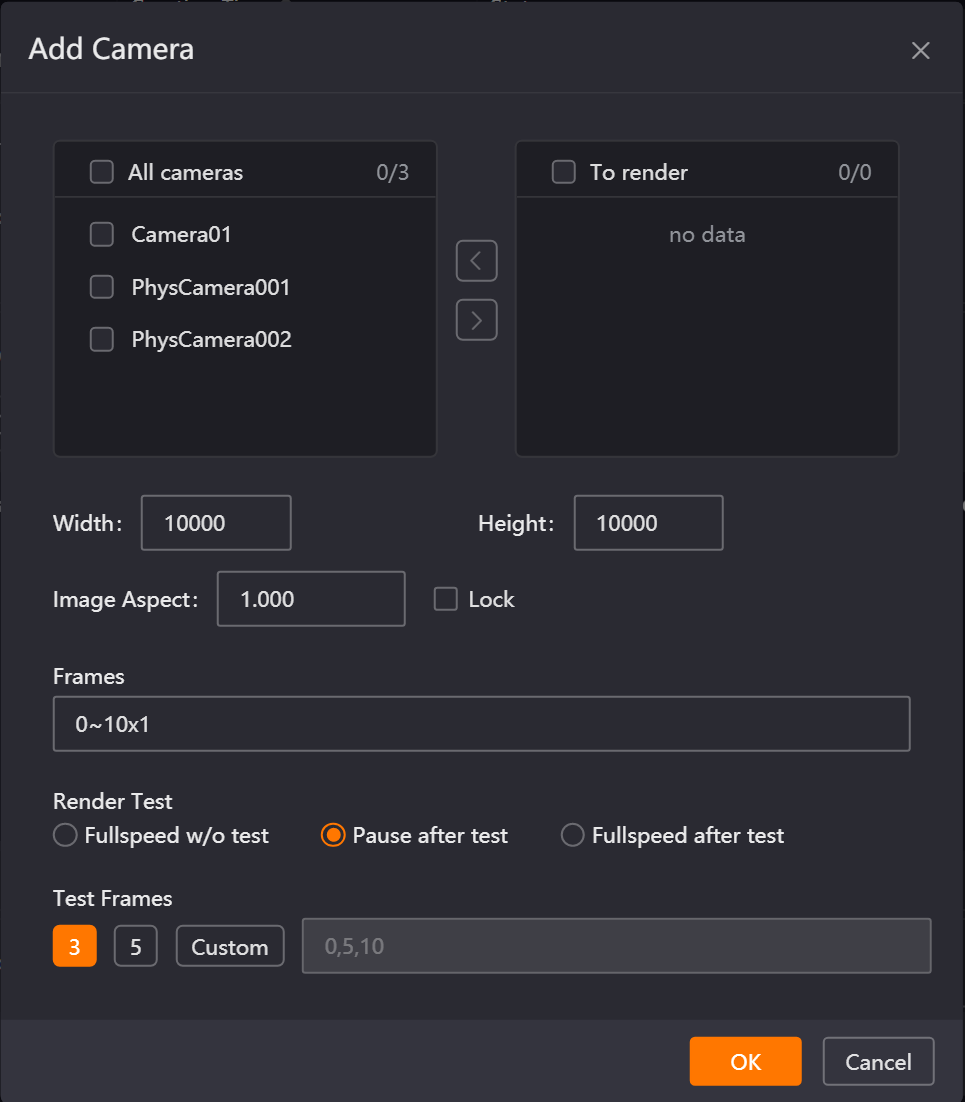
4. Job Submission
When submitting the job, 3ds Max will be launched again, the scene file will be opened, and after the job is generated, the job will no longer be displayed on the analyzing page. The job will be submitted to the client and sequentially enter the upload, unpack, render, and download results stages.
Drag-and-Drop – Single Job Submission (Max Below 2016)
1. Drag Scene File to Client
Drag the .Max scene file to the client.
2. Configure Parameters and Open Scene
In the submission job page, configure the output file path and format and 3ds Max version number, then click OK to launch 3ds Max and wait patiently.
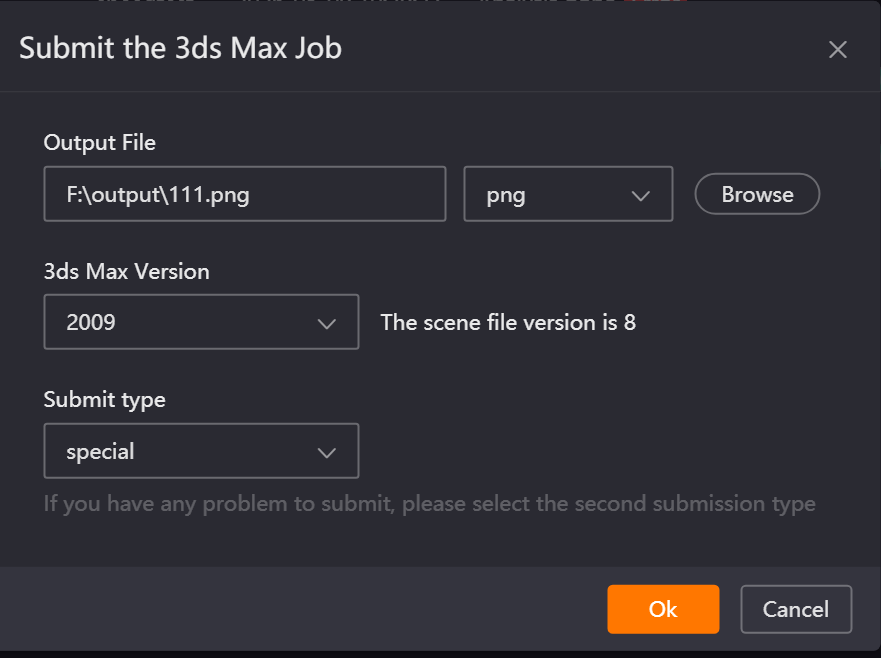
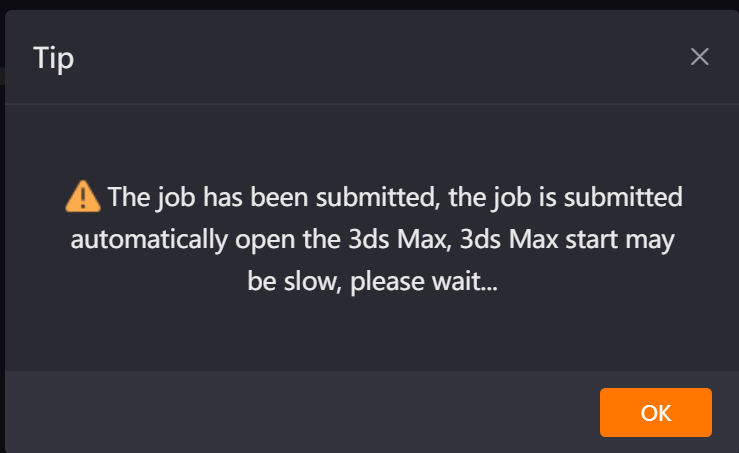
3. Configure Parameters and Submit job in Renderwow Submission Page
In the Renderwow submission interface within the scene, configure the corresponding parameters and click "OK" to submit the job.
If you need to re-adjust render settings parameters, you can first close the Renderwow submission page. In the confirmation prompt that pops up, click "OK", and the system will automatically open the render settings page. After completing the parameter modification, closing the render settings page will automatically reopen the Renderwow submission interface, allowing you to continue submitting the job.
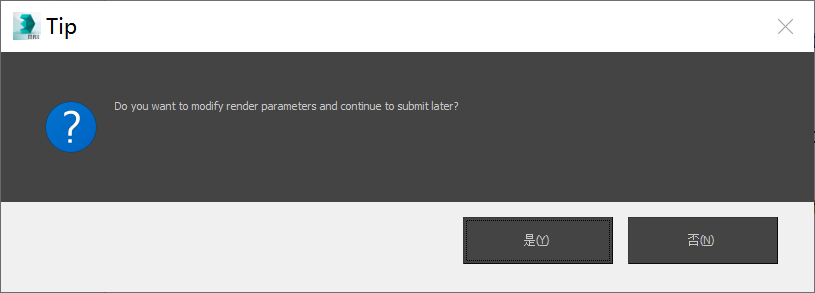
The job will be submitted to the client and sequentially enter the upload, unpack, render, and download results stages.
Drag-and-Drop – Multi-Job Submission (Max 2016 and Above)
1. Drag Scene to Client
Set the scene to animation mode, select multiple .Max scene files, and drag them to the client at once. The multi-scene submission interface will pop up.
2. Configure Parameters and Analyze Scene
In the submission job page, configure the Project Name, output file path and format, and 3ds Max version number, then click OK to enter the job analysis phase and launch 3ds Max.
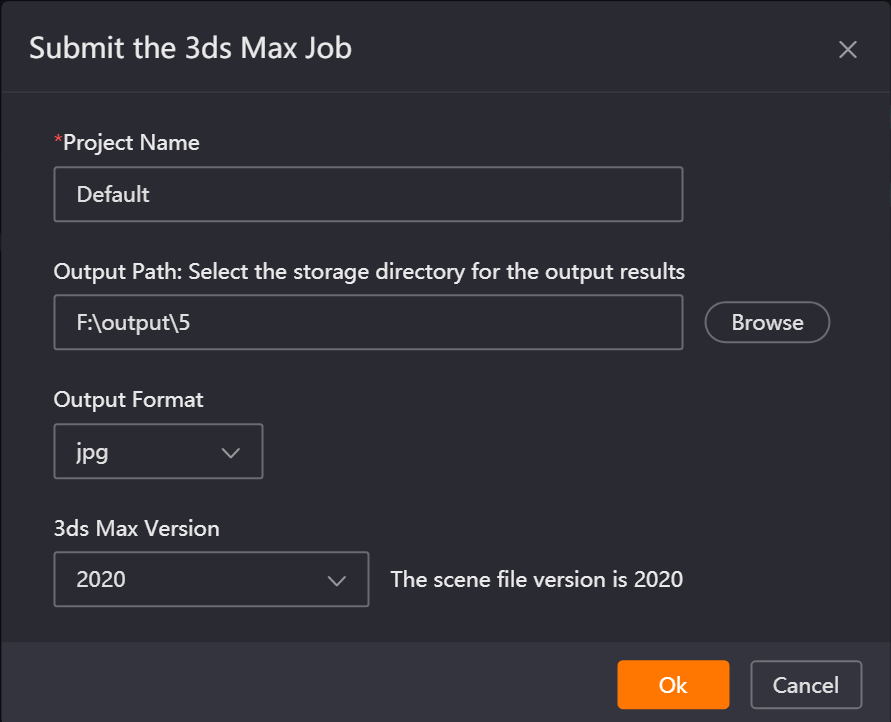
3. Configure Render Parameters
After each scene analysis is complete, click the "Submit" button respectively to open the job submission window. In the window, select the camera to render and configure the relevant parameters, then click Submit again for the job to enter the submission state.
4. Submit job
When submitting the job, 3ds Max will be relaunched and the scene file will be opened. After the job is generated, it will be removed from the analyzing page and subsequently enter the upload, unpack, render, and download results stages.
Drag-and-Drop – Multi-Job Submission (Max Below 2016)
1. Drag Scene to Client
Set the scene to animation mode, select multiple .Max scene files, and drag them to the client at once. The multi-scene submission interface will pop up.
2. Configure Parameters and Open Scene
In the submission job page, configure the output file path and format and 3ds Max version number, then click OK to launch 3ds Max. (The number of 3ds Max instances launched simultaneously equals the number of scenes submitted.)
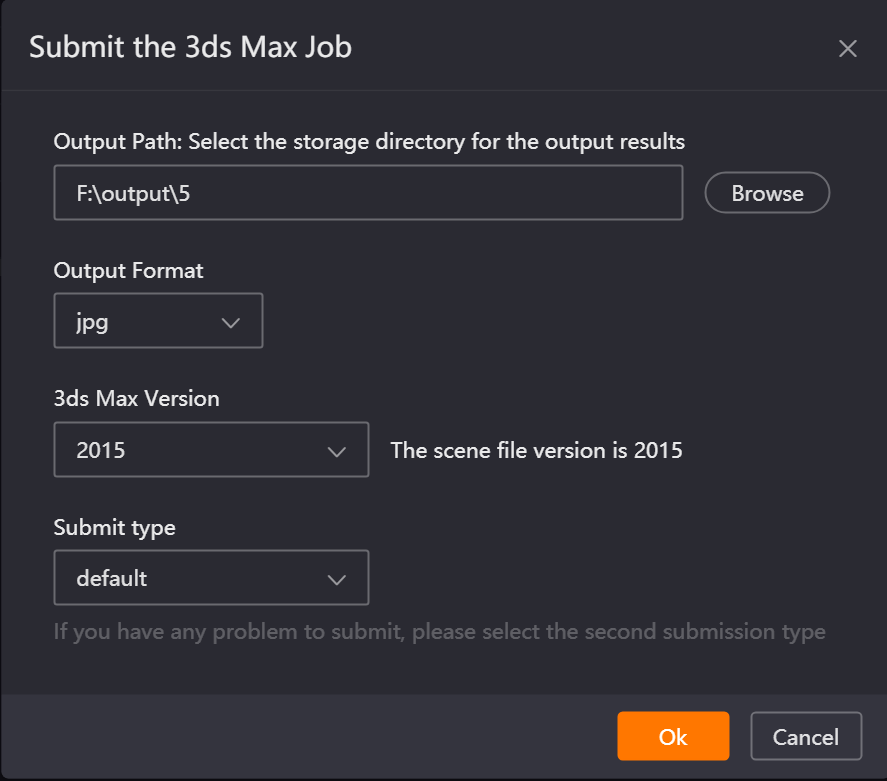
3. Configure Parameters and Submit job in Renderwow Submission Page
In the submission interfaces opened in multiple 3ds Max scenes, check and configure the corresponding parameters and click the OK button to submit the jobs respectively. If you need to reconfigure parameters in the render settings, you can close the Renderwow submission page. In the prompt, click the OK button, and Renderwow will automatically open the render settings page. After reconfiguration, closing the render settings page will automatically reopen the Renderwow submission page, allowing you to continue submitting the job.
Multiple jobs will be submitted to the client and normally go through the upload, unpack, render, and download results stages.
Note:
-
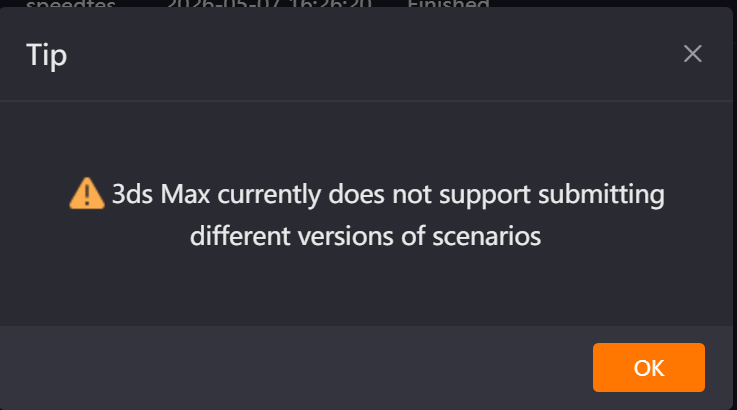
(1) When submitting multiple scenes via drag-and-drop, you can only drag scene files of the same 3ds Max version; otherwise, submission will fail.
-
(2) When submitting multiple scenes via drag-and-drop, if you want multiple scenes to be analyzed simultaneously (3ds Max 2016 and above), you can modify the "Number of Parallel Analyses for Drag-and-Drop Jobs" value in Settings → Basic Settings. This configuration requires restarting the client to take effect.
For parameter configuration in the submission interface, refer to the Rendering and Animation Parameter Details in the 3ds Max Renderwow Plug-in Feature Introduction.