
 3ds Max
 Blender
 Keyshot
 Cinema4D
 SketchUp
 Rhino
Rhino Maya/Houdini/Clarisse/Katana/

Blender Submission Tutorial
Overview
The Renderwow platform supports Blender versions 2 to 5.1 and commonly used cache files. Still and animation jobs are submitted via the Renderwow plug-in panel within Blender.
Video for Blender Plugin Submission
1. Install Renderwow Plug-in
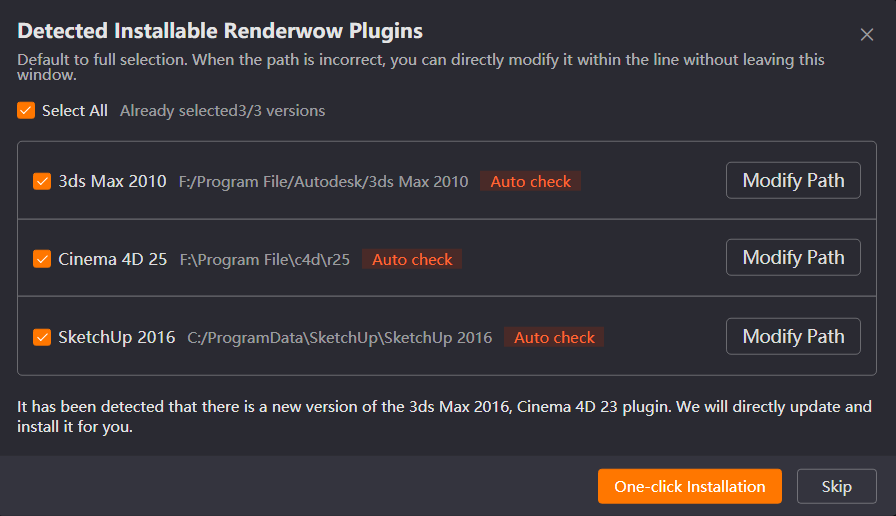
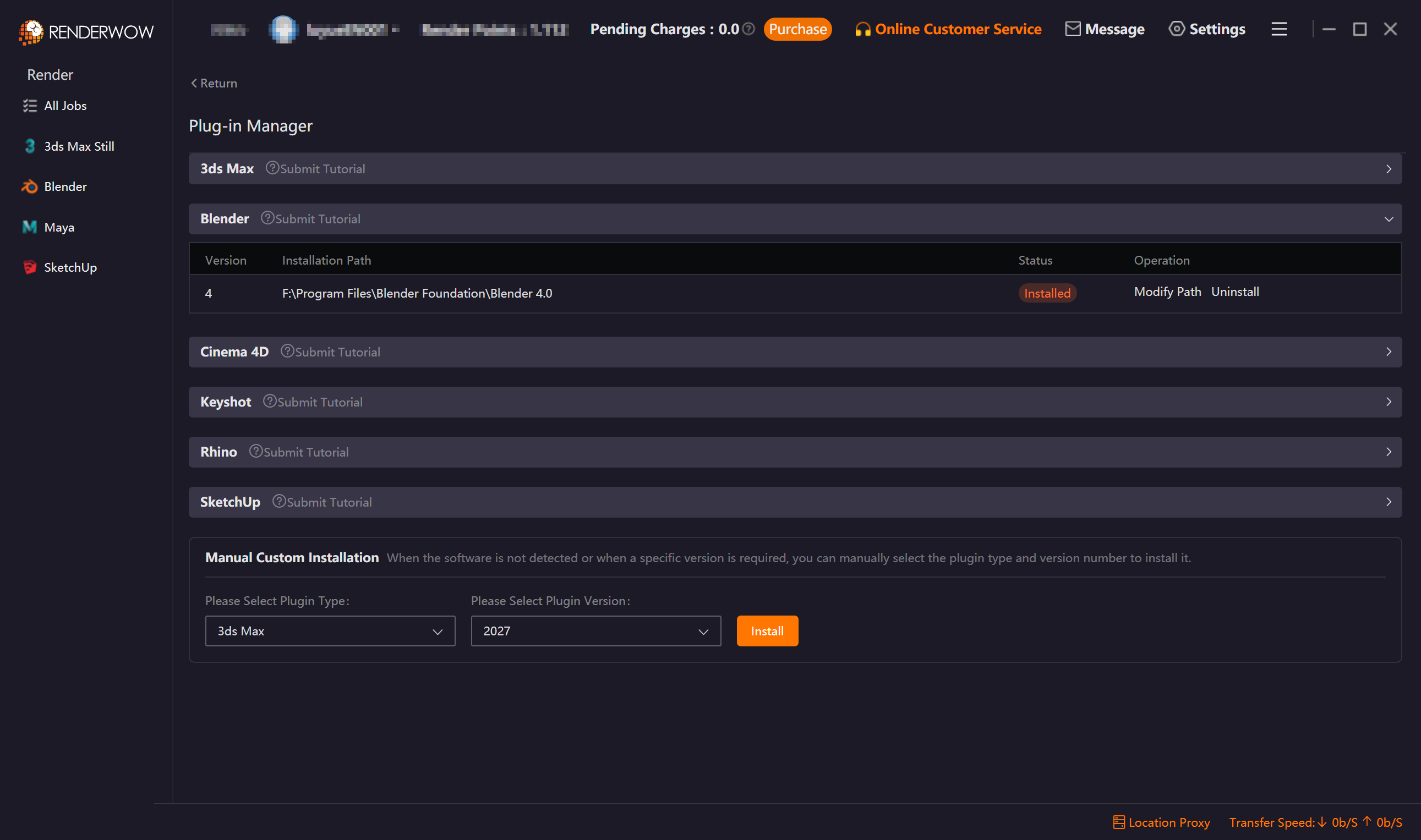
Launch the Renderwow Client. Install the Renderwow plugin matching your local Blender version either from the automatic plugin detection popup or by navigating to the [Plug-in Manager] page. Once the installation is complete, Renderwow will display an [Installation Successful] notification, and the corresponding Blender version in the list will show as Installed.
 2. Load Renderwow Plug-in
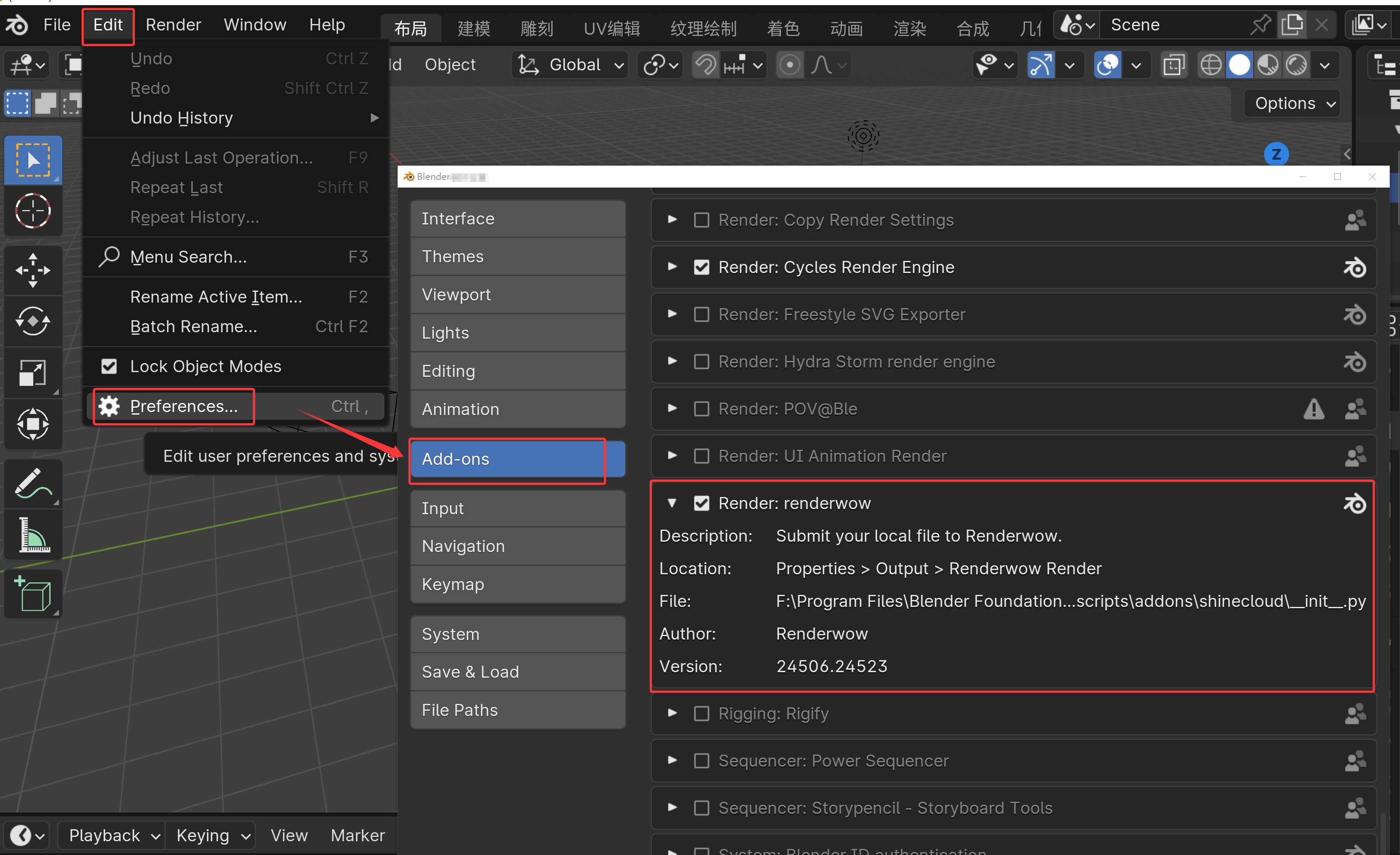
Open Blender, click [Edit] → [Preferences] in the top menu bar, locate and check "Renderwow Plugin (Renderwow)" in the [Add-ons] list on the left, and the plugin will be loaded.
3. Open Renderwow Submission Interface
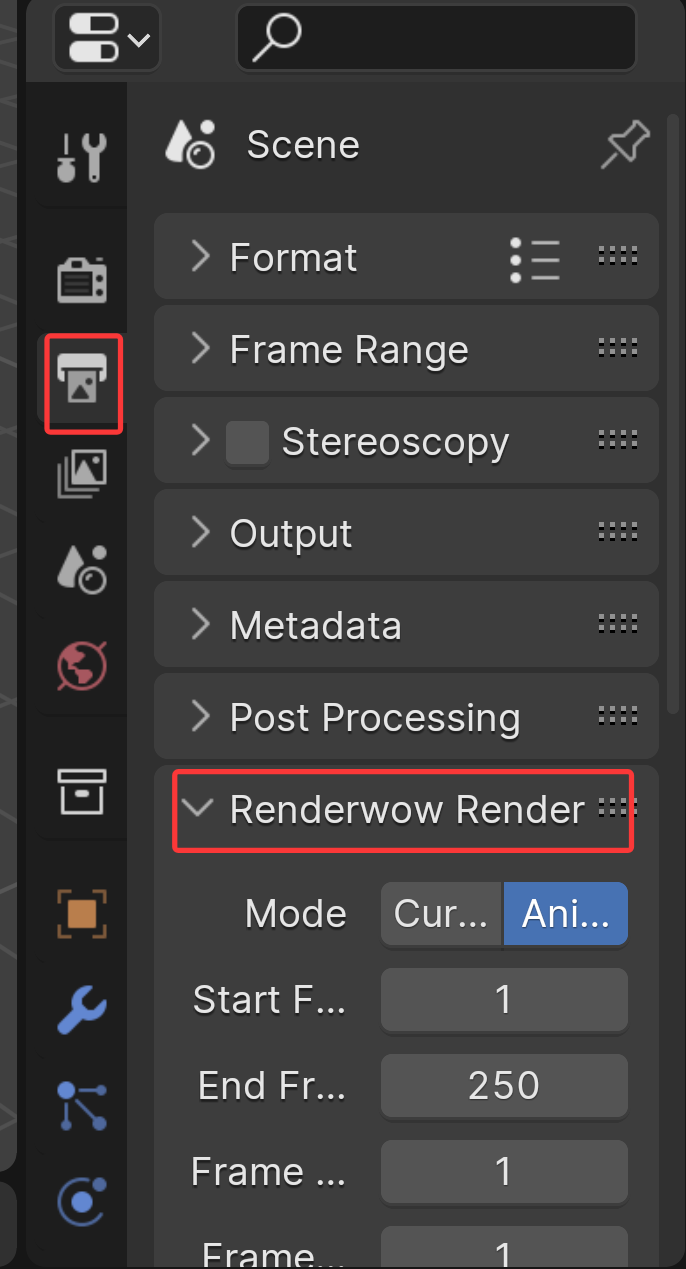
After the previous step, complete the render-related parameter settings for the scene file (such as output path, render Resolution, and other necessary information). After confirming all parameters are correct, find "Renderwow Render" in the [Output] column of the right navigation bar in Blender and click to display the plug-in submission interface.
4. Select Submission Type and Configure Parameters
If submitting a rendering (single frame): In the Renderwow plug-in submission interface, switch [Mode] to "Current Frame", fill in or modify each configuration item as needed, and click "Save Blender File" to prepare for submission.
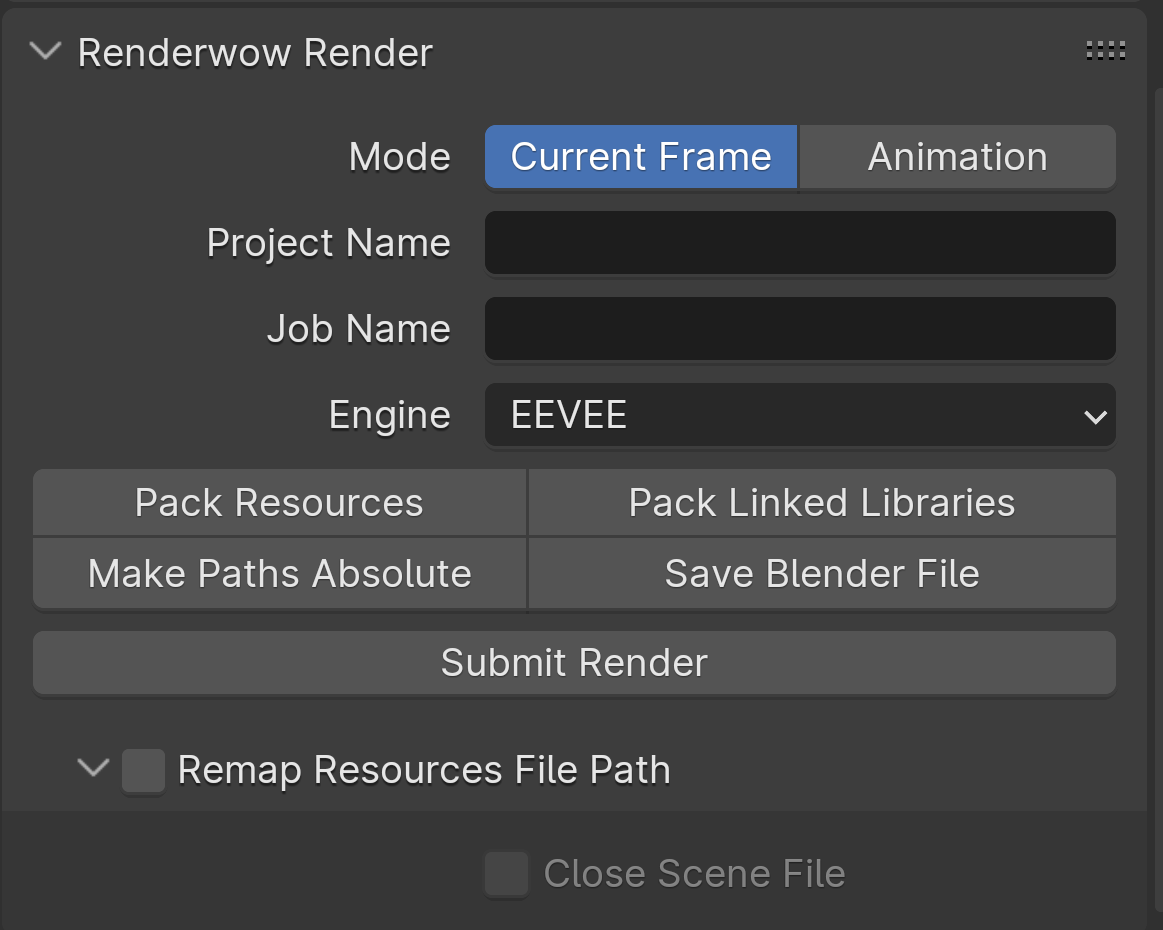
If submitting an animation (multi-frame): In the Renderwow plug-in submission interface, switch [Mode] to "Animation", fill in or modify each configuration item as needed, and click "Save Blender File" to prepare for submission.
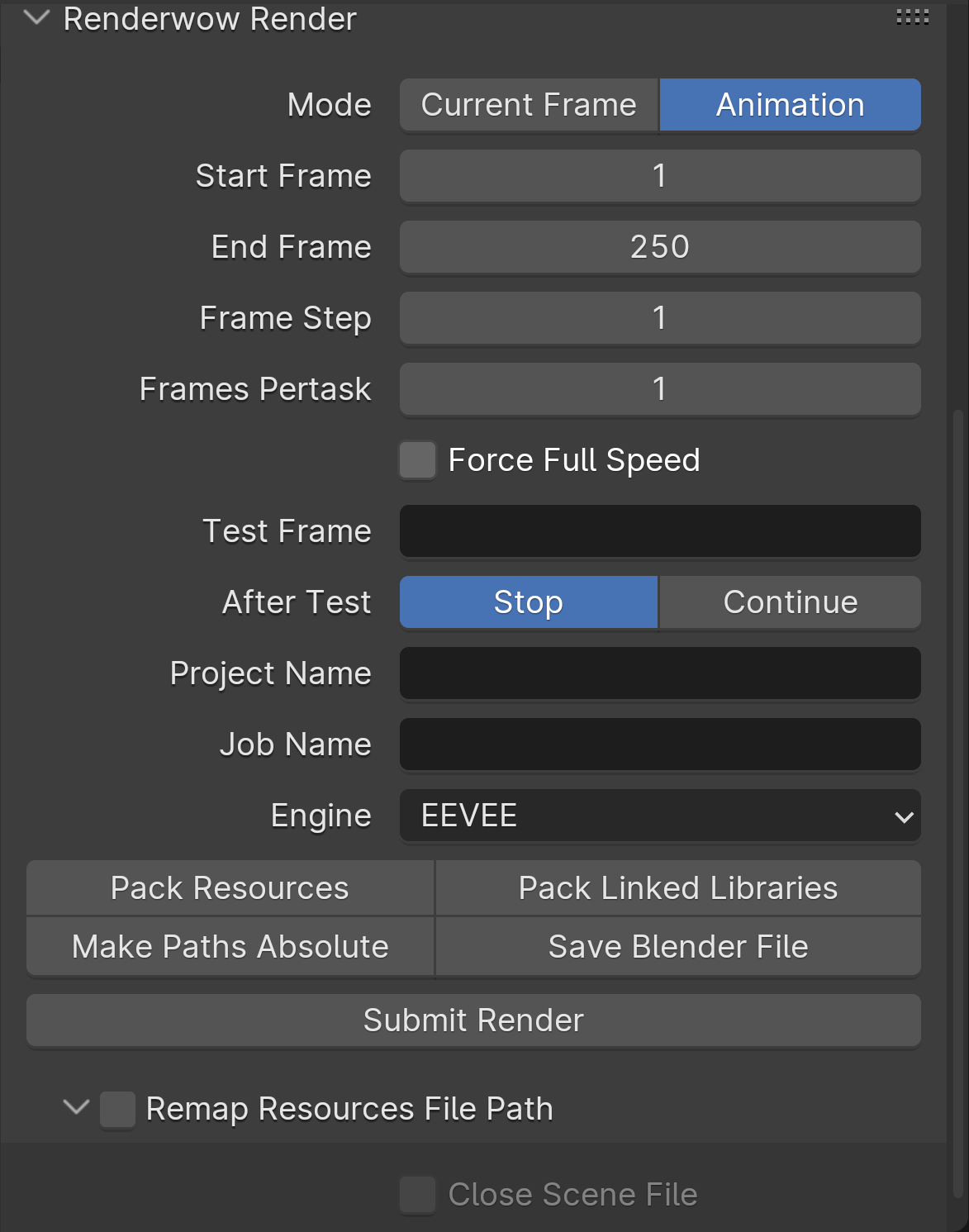
Note: If the scene has unsaved modifications and you have not clicked "Save Blender File", submission will fail with a prompt.

5. Submit job and Track Render Progress
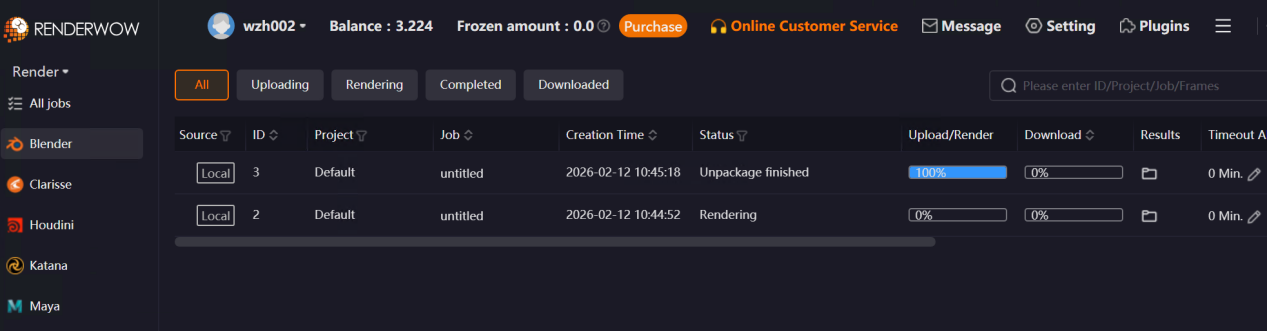
After confirming all basic configurations and detailed parameters are correct, click the [Submit Render] button in the plug-in interface. A success prompt will appear, and the job will be automatically submitted to the Renderwow client. After submission, you can return to the Renderwow client and view the "Package → Upload → Render → Download" full process progress of this job in the job list. After rendering is complete, the results will be automatically saved to the client’s default path.

For detailed feature descriptions, please refer to : Blender Renderwow Plugin Functionality