 3ds Max
 Blender
 Keyshot
 Cinema4D
 SketchUp
 Rhino
Rhino Maya/Houdini/Clarisse/Katana/

Rhino Submission Tutorial
Overview
Renderwow supports Rhino 5–7 versions, used with V-Ray for Rhino. Open the submission page via the "Renderwow" button in the Rhino navigation bar. Supports two types: Rendering (without distributed / with distributed).
Submission Workflow
1. Install Renderwow Plug-in
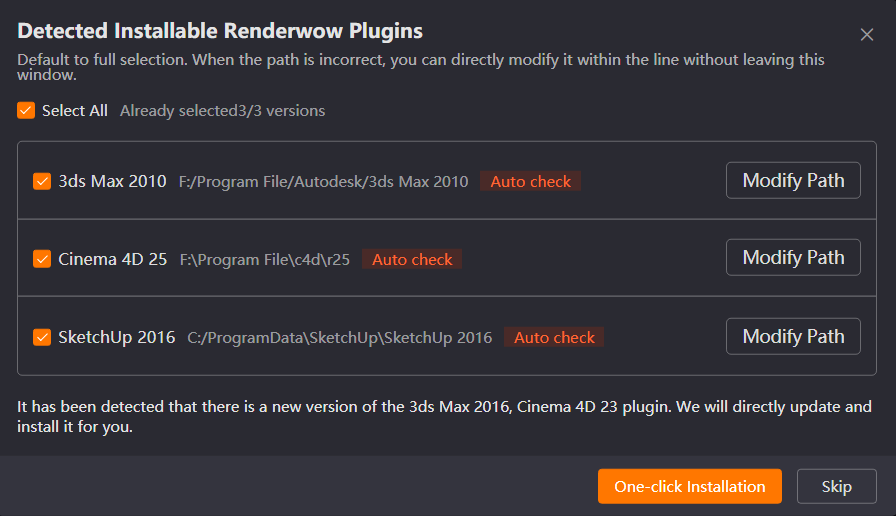
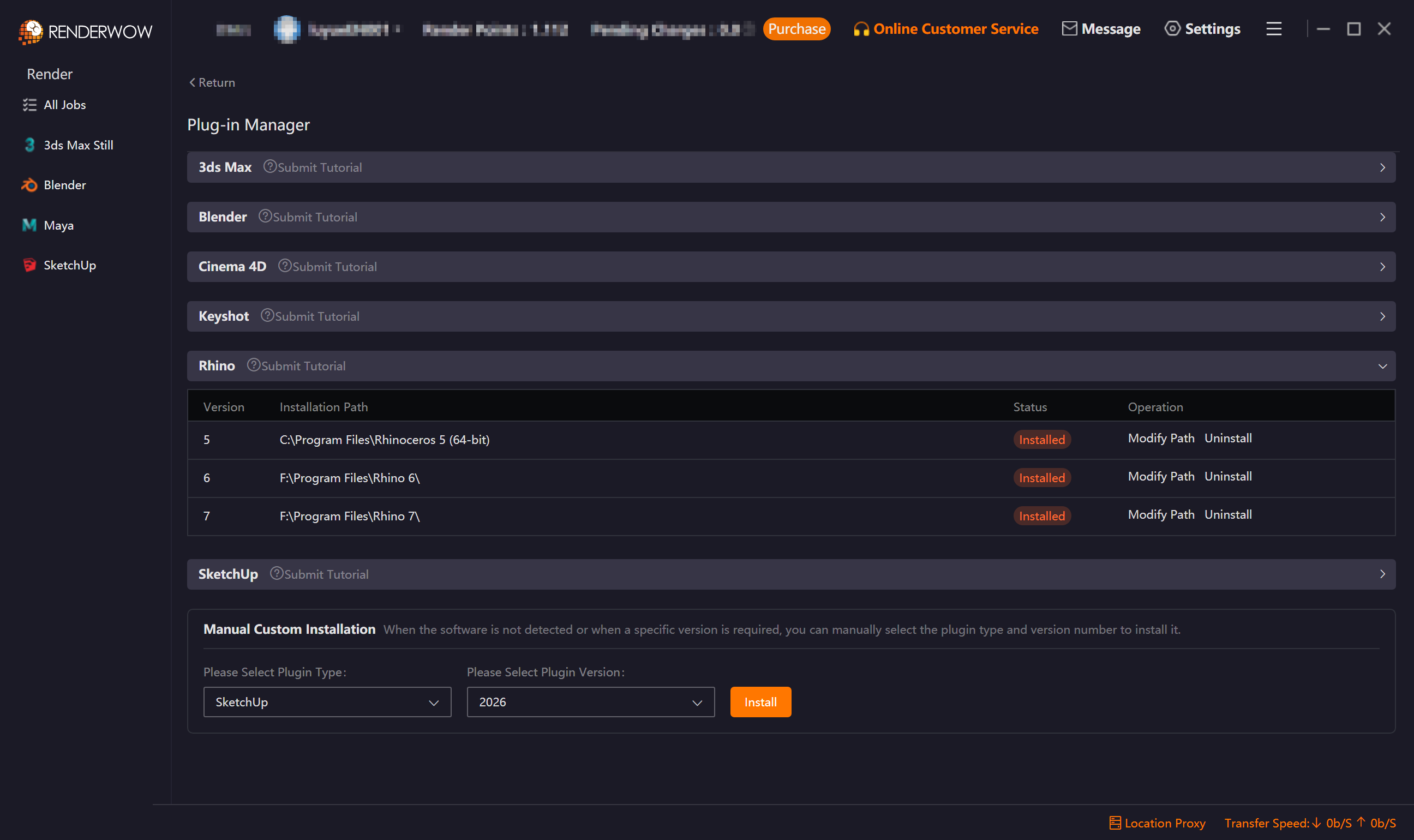
Launch the Renderwow Client. Install the Renderwow plugin matching your local Rhino version either from the automatic plugin detection popup or by navigating to the [Plug-in Manager] page. Once the installation is complete, Renderwow will display an [Installation Successful] notification, and the corresponding Rhino version in the list will show as Installed.
2. Open Renderwow Submission Page
After the previous step, complete the render-related parameter settings for the scene file (such as output path, render Resolution, and other necessary information). After confirming all parameters are correct, find the [Renderwow] option in the top navigation bar of the Rhino software and click to open the Renderwow Rhino render job submission page.

Note: If the Renderwow plug-in is not displayed, you can open the menu "Tools" → "pythonScript" → "Script Editor", then close the Script Editor window, and enter the command SwCommand in the command line execution in the upper half of the Rhino interface to launch the plug-in.
3. Select Submission Type and Complete Settings
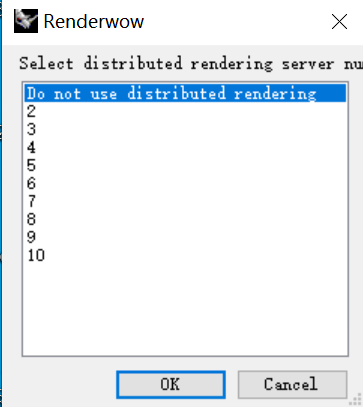
Renderwow Rhino Cloud Rendering supports two submission types (Rendering without distributed job, Rendering distributed job). Select the corresponding type according to your render needs and click [OK].
-
Select without distributed rendering: The cloud uses 1 machine to render.
-
Select 2–10: The cloud enables the corresponding number of machines to render together. No additional acceleration fee is charged.
Note:
-
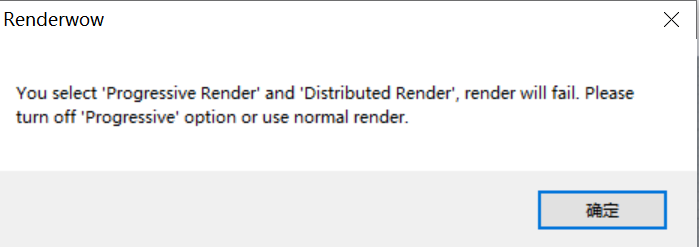
Progressive render mode does not support distributed jobs. If the current scene is set to progressive rendering, selecting distributed submission will prompt: "Selecting both progressive rendering and distributed rendering will cause render failure. It is recommended to cancel progressive rendering mode or submit using non-distributed rendering."
4. Save File to Desktop
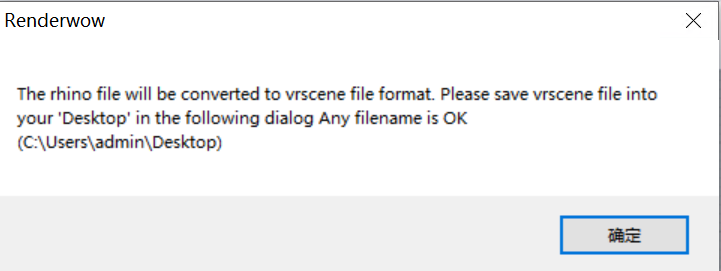
After the previous step, Renderwow will pop up a prompt indicating that the Rhino model needs to be converted to vrscene format and requires saving the file to the desktop (default path: C:\Users\Administrator\Desktop). Click the [OK] button in the pop-up, and after the file save window pops up, select the desktop as the save path, enter any file name, and complete the save operation.
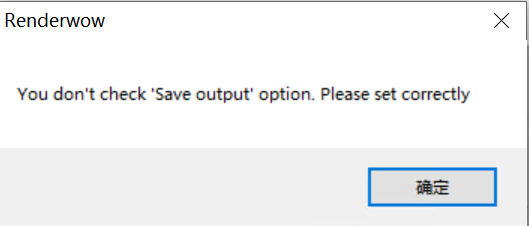
Note: If the output path is not checked, a prompt will appear and you cannot continue submission.
5. Job Submission and Progress Tracking
After the file is successfully saved in the previous step, Renderwow will pop up a [Job Submission Complete] prompt. Click [OK]. At this point, return to the Renderwow client, and you can find the just-submitted job in the job list. The job will automatically go through [Package → Upload → Render → Download]. After the job is complete, the render results will be automatically saved to the previously set output path.