
 3ds Max
 Blender
 Keyshot
 Cinema4D
 SketchUp
 Rhino
Rhino Maya/Houdini/Clarisse/Katana/

SketchUp Submission Tutorial
Overview
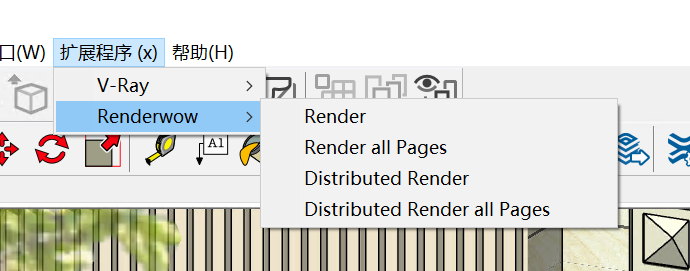
Renderwow supports SketchUp 2015–2026 and requires V-Ray for SketchUp. Access the submission interface via SketchUp’s top menu "Extensions" → "Renderwow". Supports four submission types: Render, Render All Pages, Distributed Render, and Distributed Render All Pages.
Submission Workflow
1. Install Renderwow Plug-in
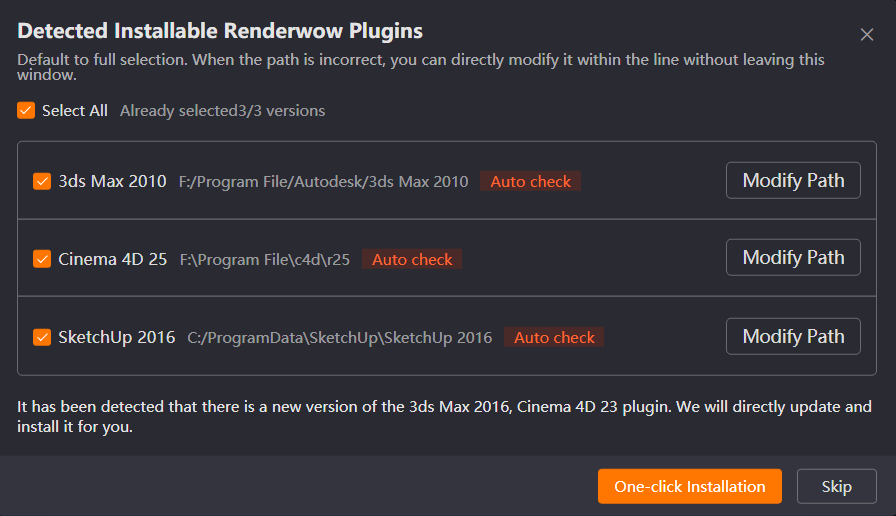
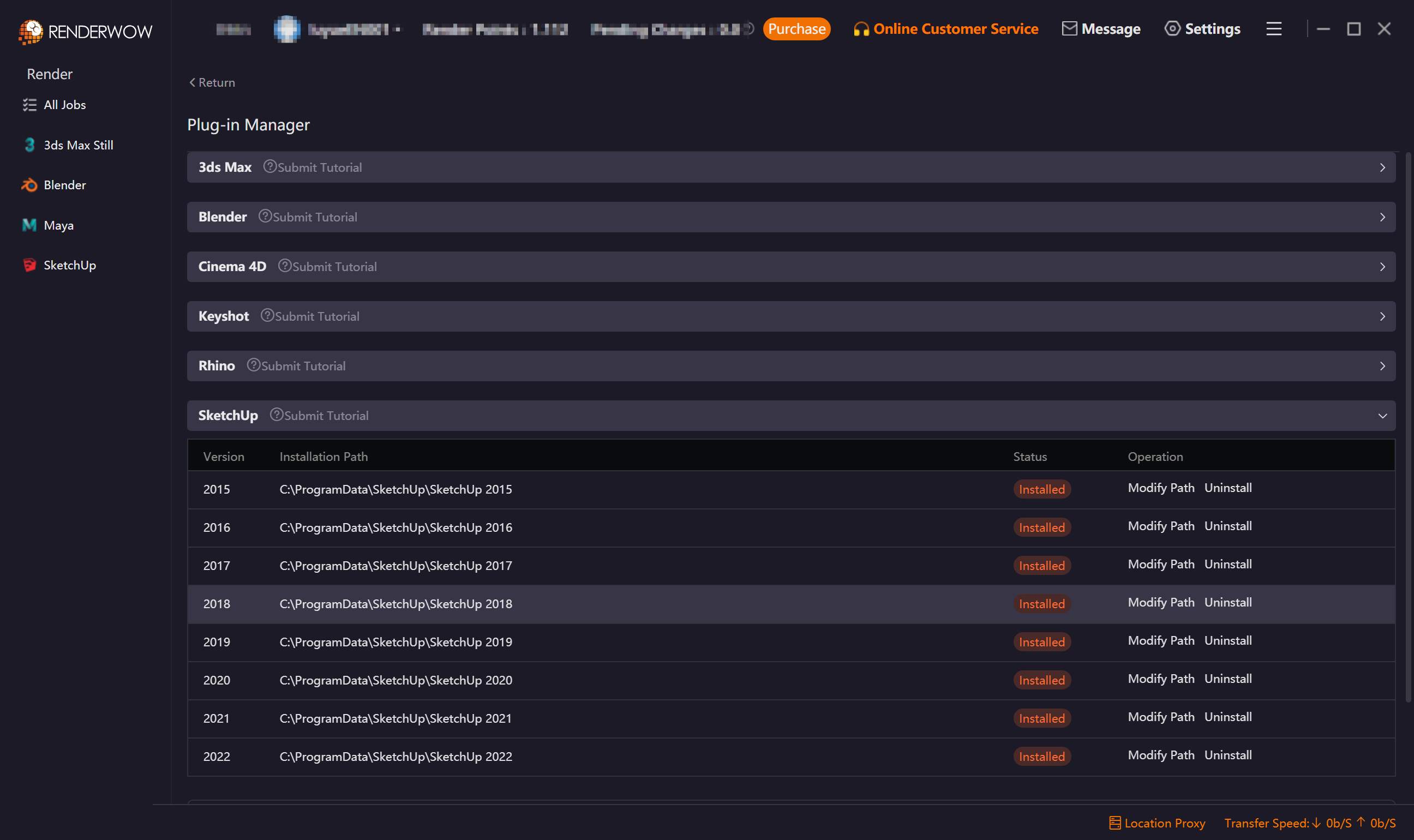
Launch the Renderwow Client. Install the Renderwow plugin matching your local SketchUp version either from the automatic plugin detection popup or by navigating to the [Plug-in Manager] page. Once the installation is complete, Renderwow will display an [Installation Successful] notification, and the corresponding SketchUp version in the list will show as Installed.
2. Open Renderwow Plug-in
After plug-in installation is complete, launch the local SketchUp software. After configuring the render scene-related parameters (such as output path, render Resolution, and other necessary information) and selecting the render page, if you need to submit an animation job, you must enable the animation function in [Settings] of the V-Ray Asset Editor, and set animation parameters such as frame range. After confirming all parameters are correct, find the [Extensions] option in the top menu bar, click the dropdown menu, and select [Renderwow] from the list to expand all available render job submission options and prepare for subsequent submission operations.
Note:
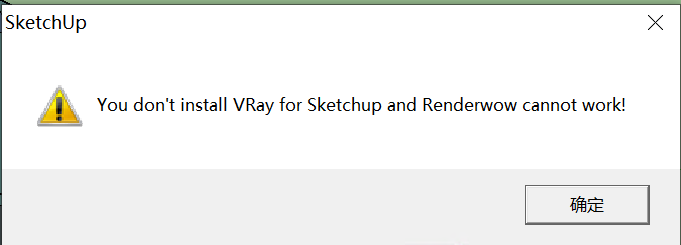
If V-Ray is not installed, or V-Ray has no license, Renderwow cannot be used, and a prompt will appear.
If the output path is not set or the output path does not exist, a prompt will appear, and you need to manually modify the output path before reopening the Renderwow plug-in.
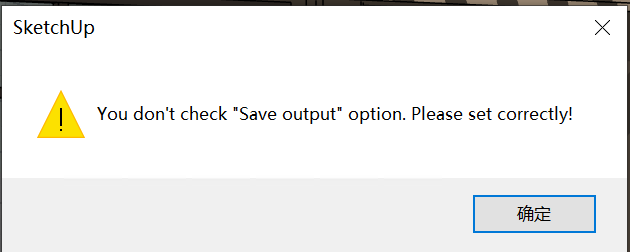
3. Select Render Job Submission Type and Set Parameters
After the previous step, select the corresponding submission type according to your needs. Specific operations and parameter settings are as follows:
- Render (Still and Animation)
This option can submit the current page’s still or animation job. The submission type is determined by whether animation is enabled.
Submit Animation job:
Enable animation in the V-Ray Asset Editor and set the relevant parameters, then click [Render]. The job will be directly submitted successfully.
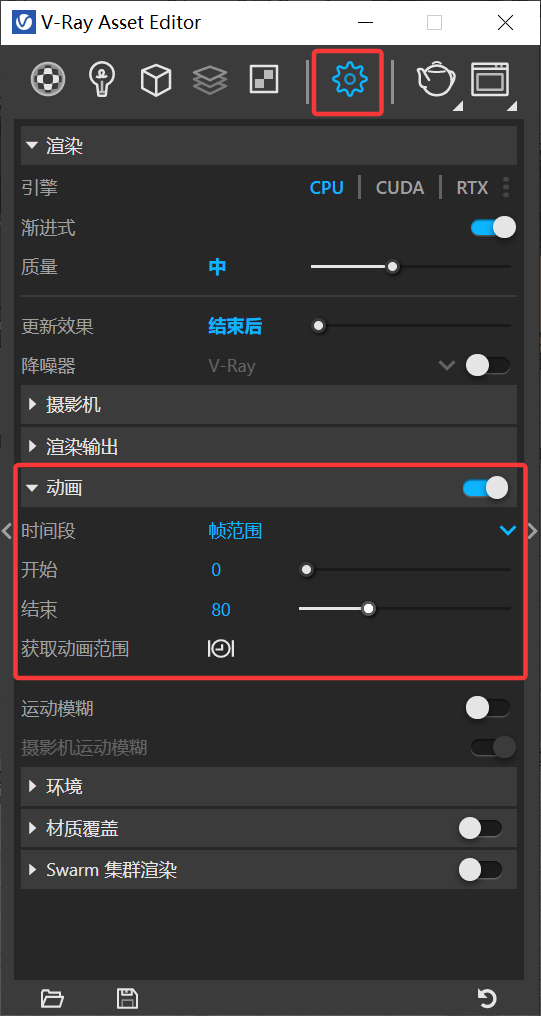
Submit Still job (Submit only the currently selected page)
1. Select the page to render, click [Render], the job is submitted successfully.
- Render All Pages (Still)
This option can submit still jobs for all pages with one click. The client job name will display the page name suffix for easy differentiation of render results from different pages.
1. Select any page, click [Render All Pages], and a result download directory pop-up will appear.

2. Selecting [No] in the pop-up means that when outputting results, a folder for each page will be created in the output path to save the corresponding results (recommended to avoid losing render results with the same name); selecting [Yes] means all results will be output in the same directory (default is [No]).
3. After clicking [OK] in the previous step, the job is submitted successfully.
- Distributed Render (Still)
This option can only submit the still job of the currently selected page and does not support progressive render mode. Increasing the number of distributed servers can improve render speed.
1. Select the page to render and click [Distributed Render]. A distributed selection pop-up will appear.
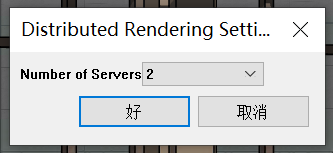
2. You can choose 2–10 different numbers of distributed servers. The cloud will enable distributed synchronous rendering according to the selected machine quantity.
3. After clicking [OK] in the distributed pop-up, the job is submitted successfully.
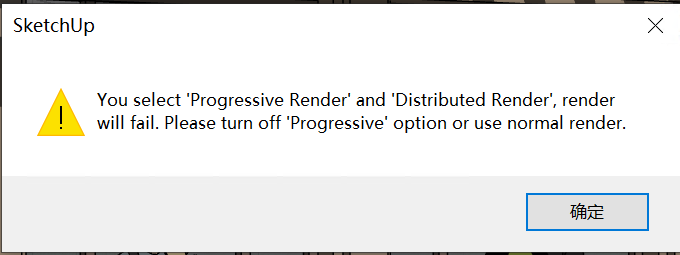
Note: Progressive render mode does not support distributed jobs. If the current scene is set to progressive rendering, selecting distributed submission will prompt you. After turning off progressive mode, you can submit normally.
- Distributed Render All Pages (Still)
This option can submit still jobs for all pages with one click. The client job name will display the page name suffix, combined with distributed rendering functionality to improve overall render efficiency.
1. Select any page, click [Distributed Render All Pages], and a result download directory pop-up will appear. The setting method is consistent with "Render All Pages".
2. After clicking [OK] in the download directory pop-up, a distributed selection pop-up will appear. The setting method is consistent with "Distributed Render".
3. After clicking [OK] in the distributed pop-up, the job is submitted successfully.
Special Cases
If there are missing files in the scene, a prompt pop-up will appear during submission, indicating that n resource files are lost. Clicking "Yes" will ignore and continue submission; clicking "No" will cancel submission, and you can reconfigure the resource files before resubmitting.
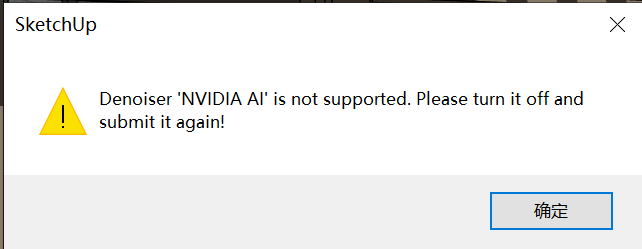
Renderwow does not support AI denoising mode for job submission. After turning it off, you can submit.
4. Job Submission and Progress Tracking
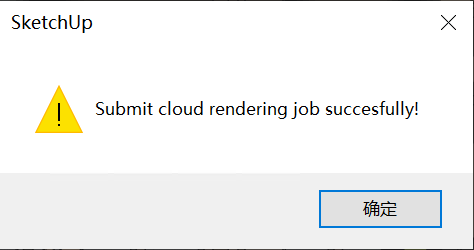
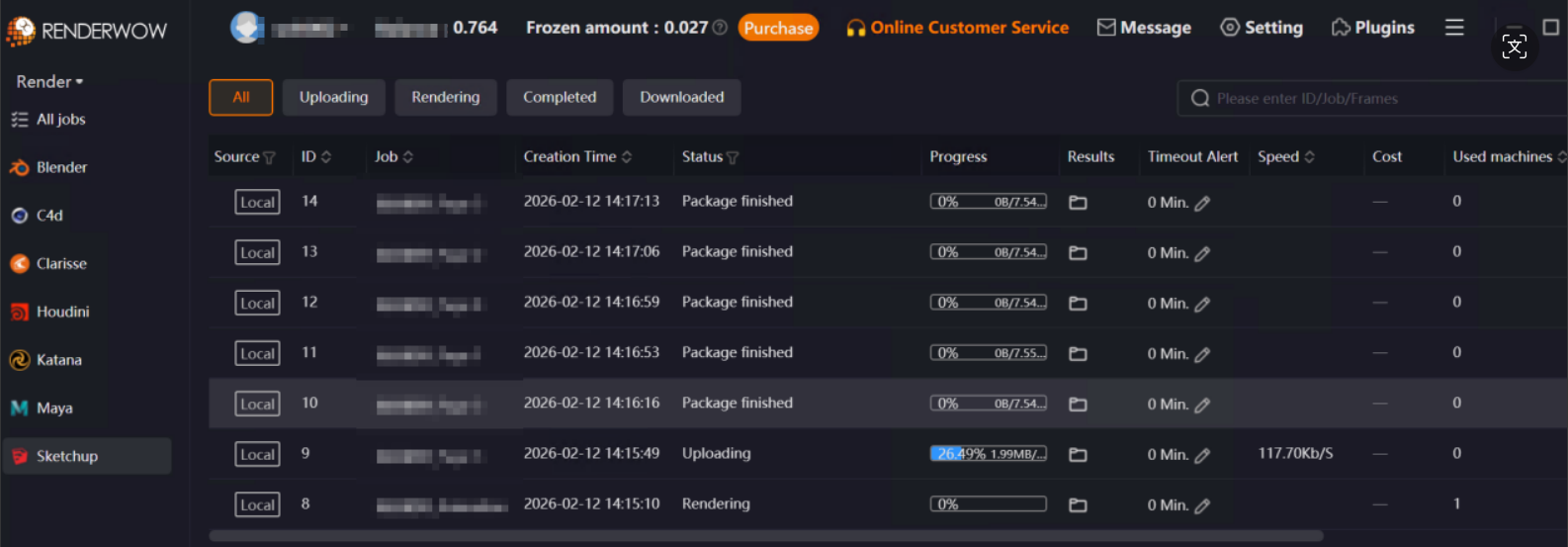
After the previous step, SketchUp will pop up a [Submit cloud rendering job succesfully!] prompt. Click [OK]. At this point, open the Renderwow client, and you can find the just-submitted job in the job list. The job will automatically go through the [Package → Upload → Render → Download] complete process. After the job is complete, the render results will be automatically saved to the previously set output path.
Note: If V-Ray is not installed or V-Ray has no license, the Renderwow SketchUp submission function cannot be used. If the output path is not set or the path does not exist, Renderwow will prompt and block submission.