
 3ds Max
 Blender
 Keyshot
 Cinema4D
 SketchUp
 Rhino
Rhino Maya/Houdini/Clarisse/Katana/

Maya / Houdini / Clarisse / Katana / Unreal Engine Submission Tutorial
Overview
The above software all use drag-and-drop submission, and the basic workflow is the same (using Maya as an example). Renderwow supports:
Video for Unreal Engine Client Submission
Text for Client Submission Tutorial(Using Maya as an Example)
1. Edit or Create Render Preset
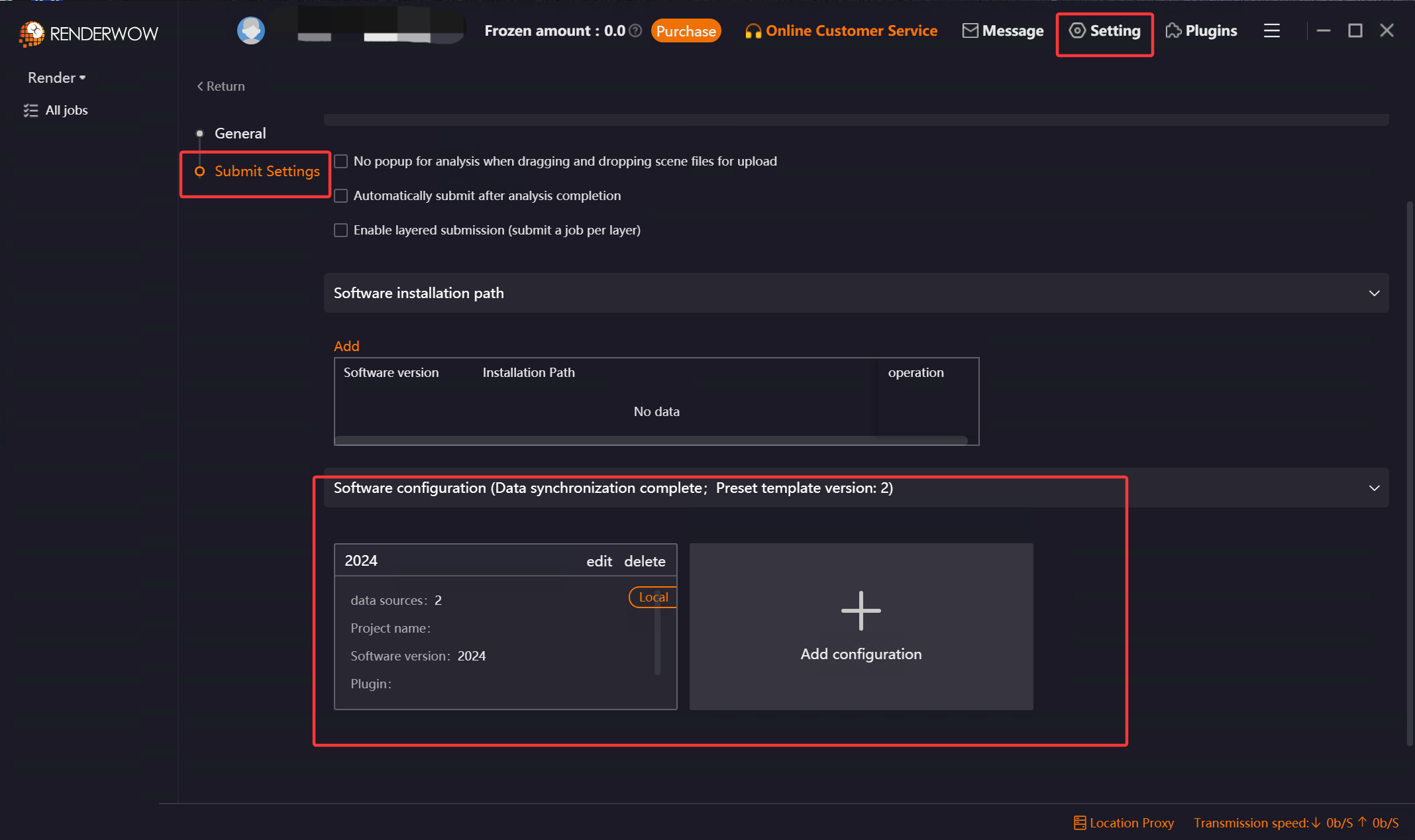
In the Renderwow client [Settings] → [Submission Settings] → [Maya] page, edit or add a Render Preset for this submission job.
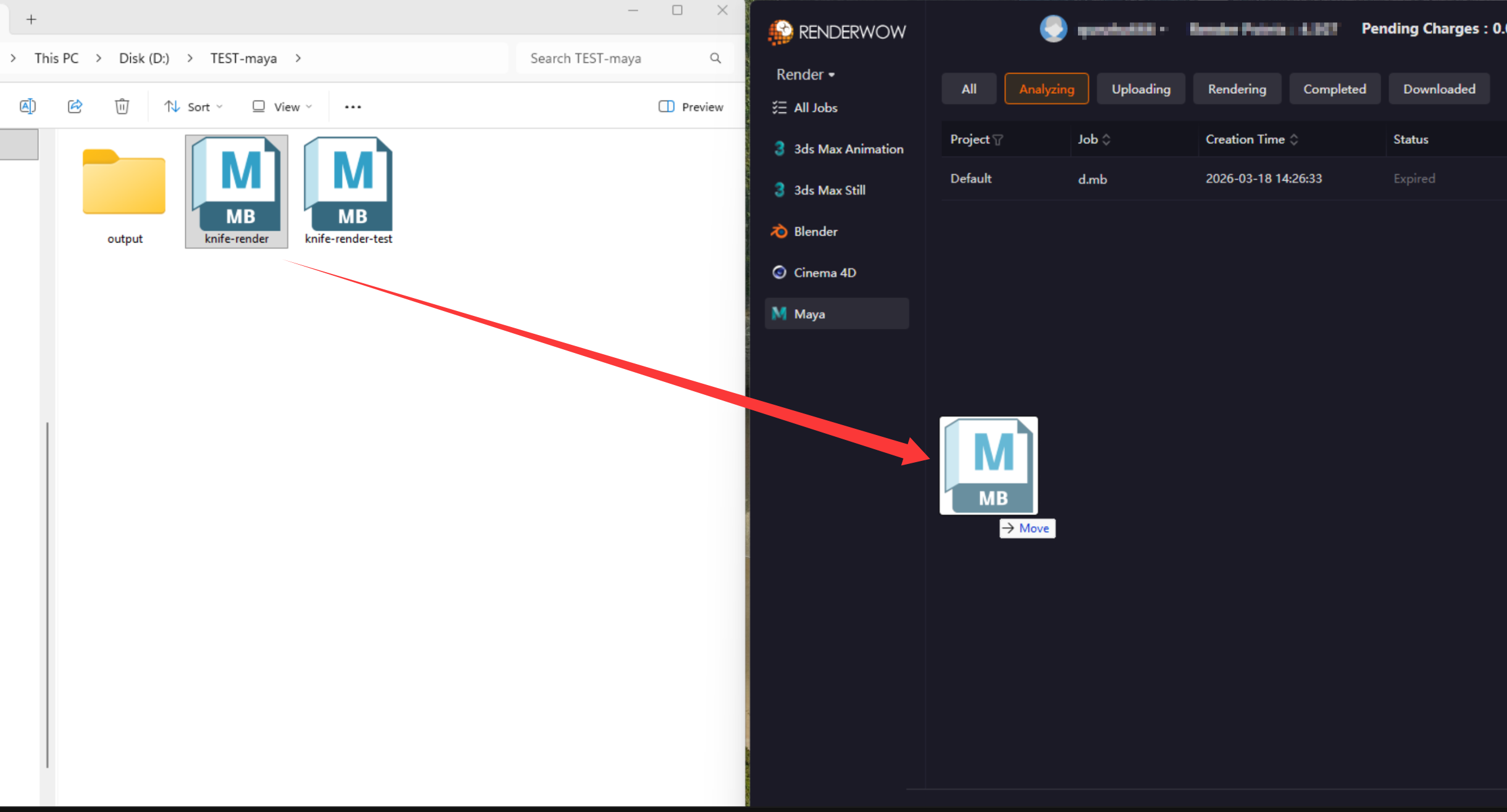
2. Drag .ma or .mb Scene File to Renderwow Client
After completing the previous step, save the scene file that needs to be rendered and drag it to any location in the client to open the "Job Analysis" page.
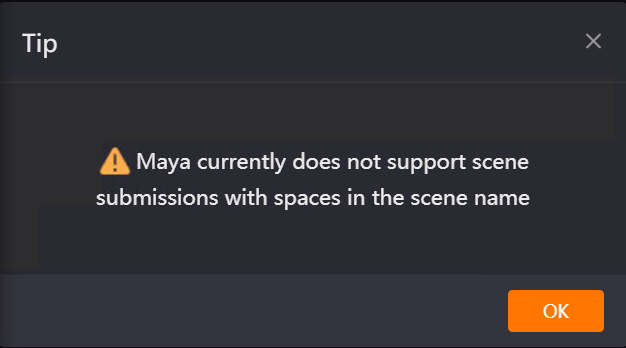
Note: Maya does not support drag-and-drop submission of scene files with spaces in the scene name.
3. Scene Analysis
After completing the previous step, select the Render Preset configured just now for scene analysis. (If you need to re-edit the Render Preset, you can also click the "Edit" button to re-edit and save.)
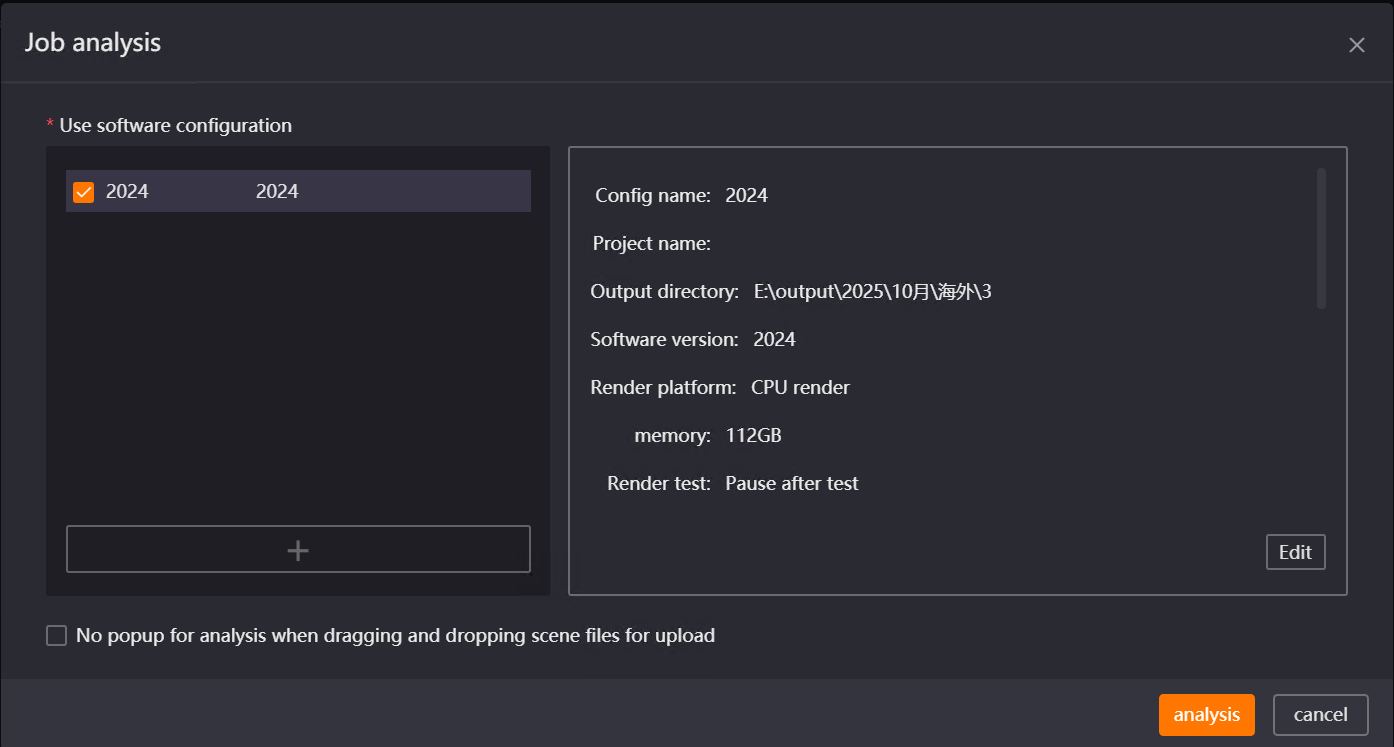
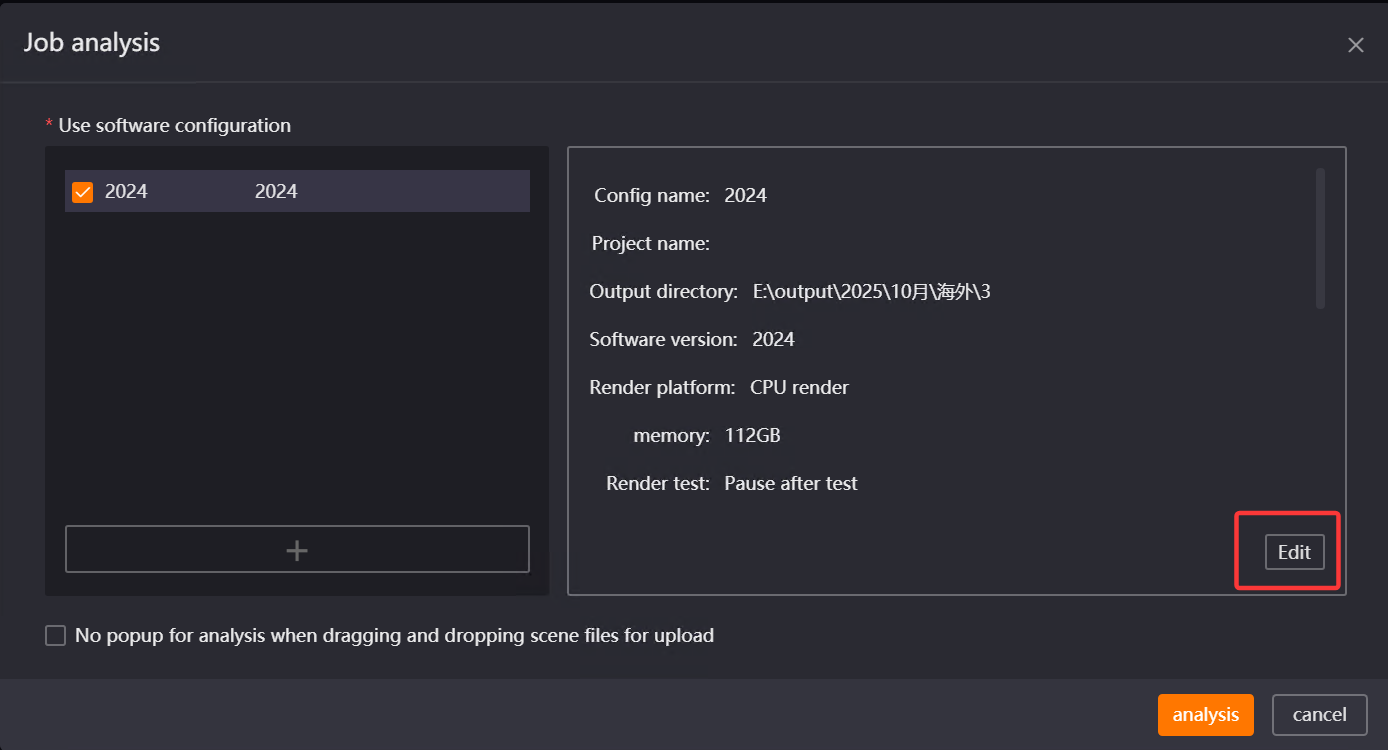
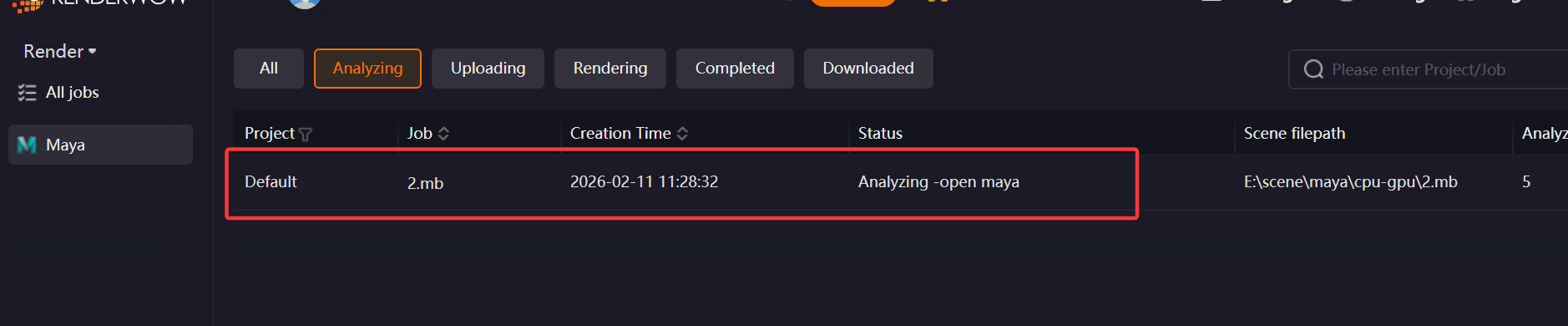
If the Renderwow Render Preset template is upgraded, you need to manually update the template content before referencing the template for analysis. Templates that need updating will be grayed out but can be checked. After checking, click the "Edit" button to edit and save, and they will no longer be grayed out and can be selected and used for job analysis. If you select a grayed-out Render Preset and click the "Analyze" button without re-editing, an error will be reported and submission will fail.
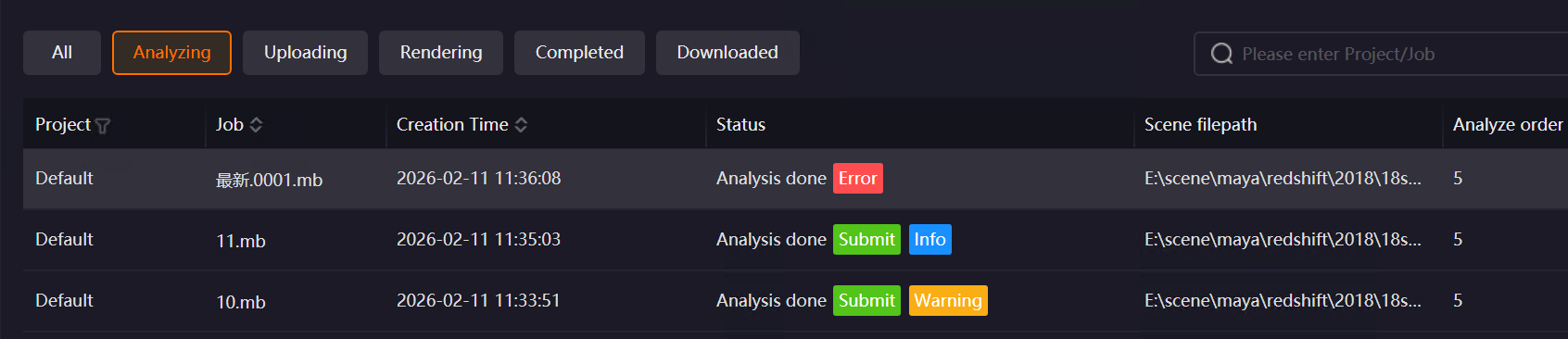
After scene analysis is complete, if there are warnings or errors, "Warning" and "Error" buttons will be displayed. Click the buttons to view the specific situation:
-
If the "Error" button appears, the job cannot be submitted. You need to modify the scene file according to the prompt and resubmit.
-
If the "Warning" button appears, and it does not affect rendering, you can continue to submit the job.
4. Render Parameter Setting and Job Submission
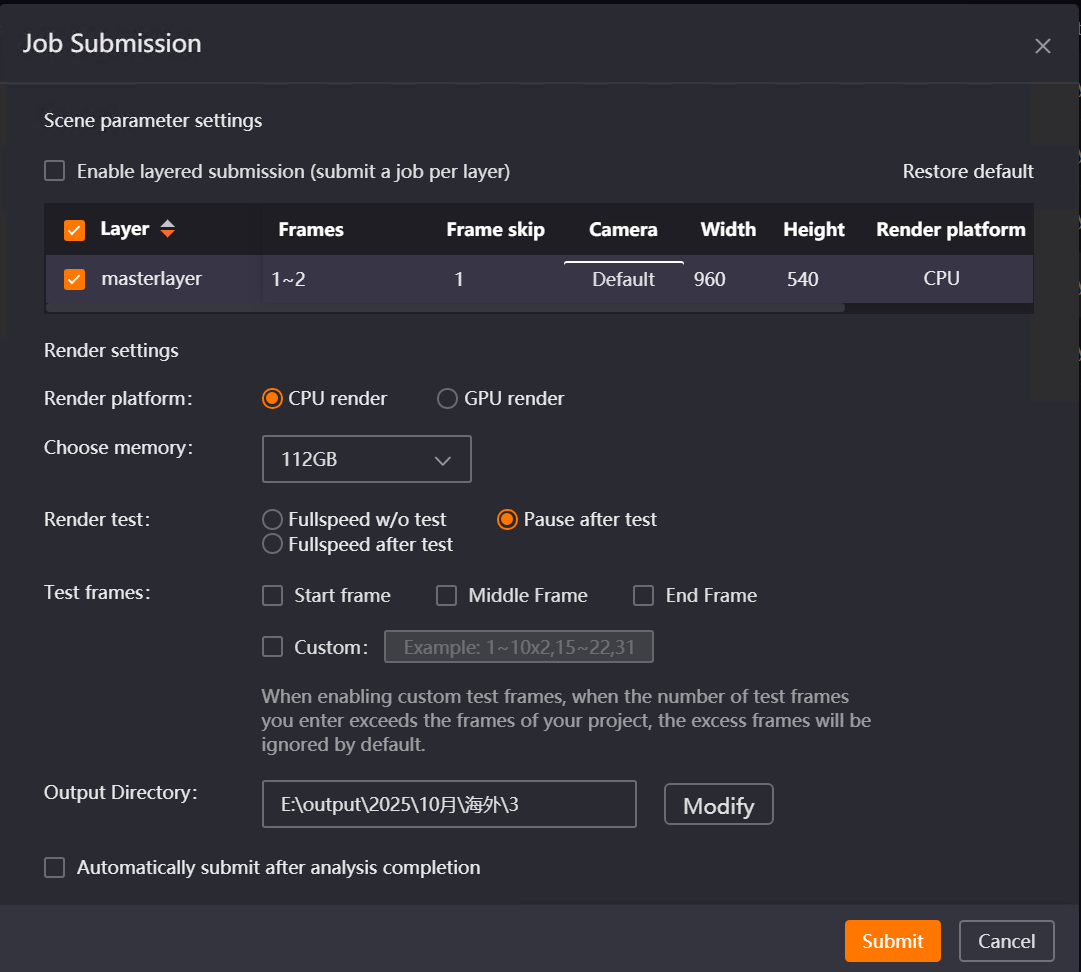
After clicking the "Submit" button in the previous step, the job submission window appears. Set the layer to render, frame range, width and height, and set relevant parameters as needed, then click the "Submit" button. The job will start packaging and uploading to the cloud for rendering.
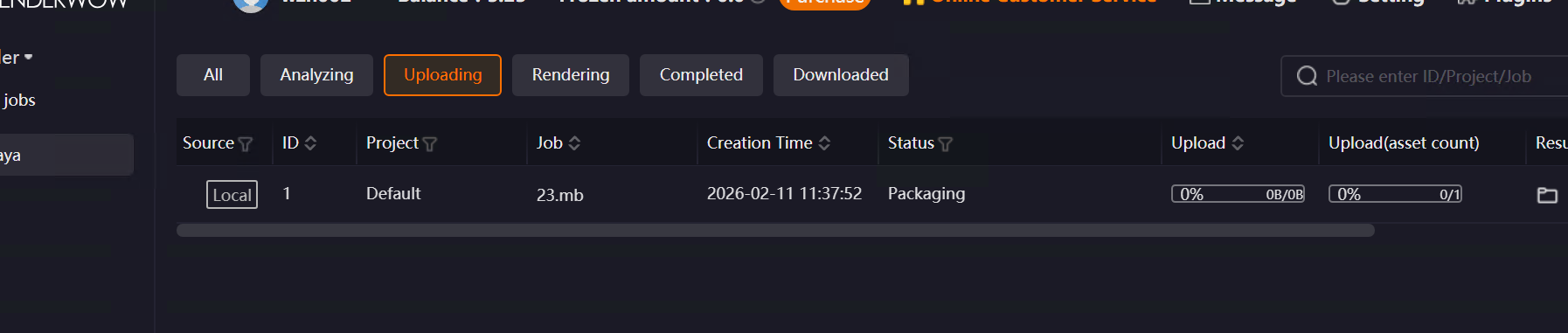
Note:
If more than 24 hours have passed since job analysis completion without submission, the job will time out and cannot be submitted, displaying a "Timed Out" status. You need to re-drag and submit for analysis.
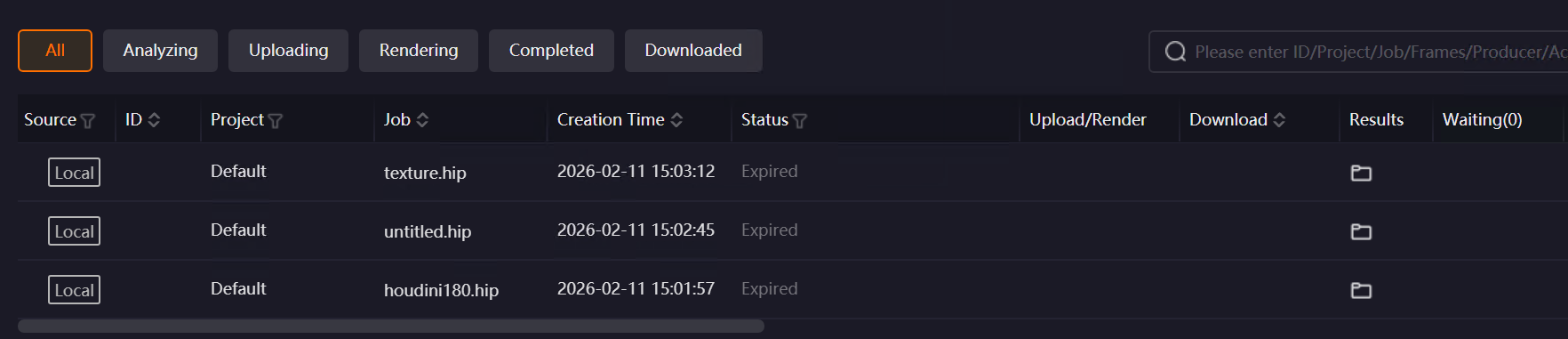
When using for the first time, Maya will prompt that the system automatically optimizes the number of frames rendered per machine. If the scene requires one machine per frame rendering, you can contact customer service at this point. (Other software do not have this prompt.)
Renderwow supports batch submission of drag-and-drop jobs of the same type with no parameter changes needed after analysis. During operation, hold the Shift key to select multiple jobs of the same type, right-click and select "Job Submission" to batch submit these jobs.
Special Cases
For Unreal Engine, if in [Settings] → [Submission Settings] → [UE] page, in General Settings, you uncheck "Enable scene analysis (use new drag-and-drop analysis UE workflow)" (this option is checked by default), you cannot use Render Preset to submit Unreal Engine jobs. It is not recommended to uncheck this option.
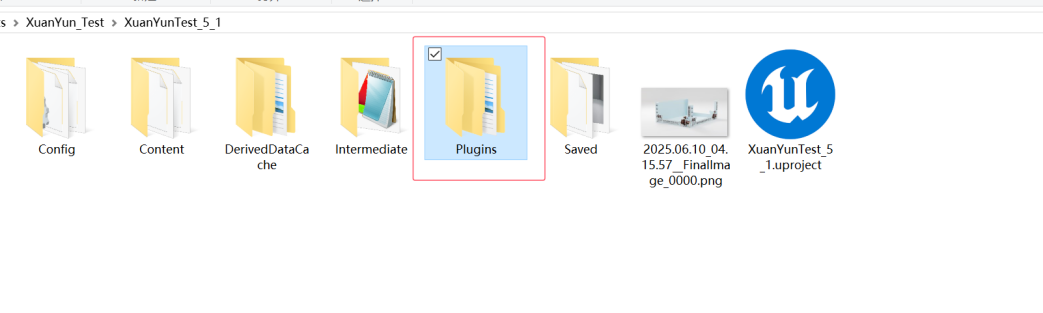
If Unreal Engine uses third-party plug-ins, it is recommended to copy the third-party plug-ins to the Plugins folder under the project directory to ensure plug-in consistency.
Number of Parallel Analyses
When dragging and dropping multiple scene files simultaneously, you can adjust the "Number of Parallel Analyses for Drag-and-Drop Jobs" (1–5) in "Settings → Basic Settings" to control the number of jobs being analyzed simultaneously. Modification requires restarting the client to take effect. Supports: 3ds Max, Maya, Houdini, Clarisse, Katana, Unreal Engine.
For detailed feature descriptions, please refer to : Maya / Houdini / Clarisse / Katana / Unreal Engine Renderwow Plugin Functionality