Still Rendering Common Settings
Depending on the renderer, the submission dialog may display different content. The unified rollouts include Common Parameters, Render View, Render Software, and About.
Common Parameters Rollout

This rollout is collapsed by default.
Name — Job name. This edit box is automatically updated to the name of the currently open scene each time a job is submitted. When multiple cameras are selected, each camera’s job is displayed in the client as "Job Name + Camera Name". This name can be modified as needed.
Version — The 3ds Max version used for cloud rendering. This version defaults to the current 3ds Max version, but can be changed to a higher version if required. If rendering errors occur with a lower version but render correctly with a higher version, changing this version can resolve the rendering error.
Project — Project name. The default value is empty. This is a drop-down list from which you can select from available projects. Project names come from two sources: one is created in the client, and the other is created by clicking the "+" button to the right of the Project field. The project name is primarily used for categorizing and filtering jobs in the client. Note: this option is remembered, and the selected project name will be displayed next time.
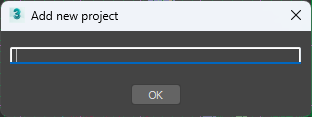
+ — Create Project. After clicking this button, a Create New Project dialog appears. Enter the project name in the edit box and click OK.
Lost Assets List

When the "Lost assets check" option is enabled in the Cloud Rendering Preferences, this rollout appears. The total number of missing asset formats is shown in parentheses at the end of the title, and the list displays the detailed path of each missing asset.
Render View
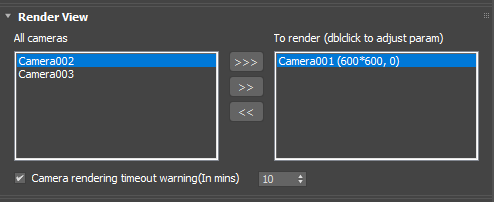
This rollout contains two camera name list boxes. The left side is the All Cameras list box, which lists all cameras. The right side is the To Render (double-click to adjust parameters) list box, which lists all cameras to be rendered for this cloud rendering job. After each camera name, the output image size and render frame numbers are displayed.
>>> — Move all camera names from the left list to the right list.
>> — Move the selected cameras from the left list to the right list.
<< — Move the selected cameras from the right list to the left list.
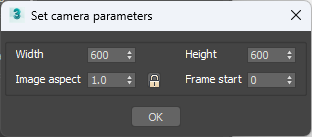
Double-click right-side camera — Set the render output width and height, and frame numbers for this camera. After setting, click the OK button.
Camera Rendering Timeout Warning (in mins) — This checkbox is unchecked by default. When checked, if the rendering time of the job exceeds the set threshold, an alert will be triggered in the Renderwow client. When the value is set to 0, it is equivalent to disabling the rendering timeout warning. When used for the first time, the default value is either 0 or the threshold set in the Settings section of the Renderwow client. Note: this option is remembered, and the selected setting will be displayed next time.
Render Software
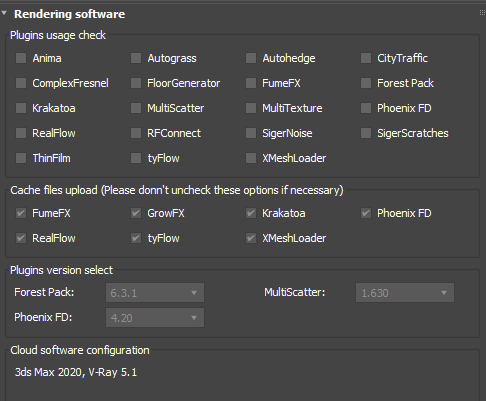
The function of this rollout is to set the plugins required for cloud rendering.
Plugins Usage Check — This list contains plugins supported in the early versions of Renderwow. Renderwow automatically detects which plugins are used in the scene and automatically checks the checkbox in front of the plugin name. Newly supported plugins are all automatically detected, so this list is no longer updated. After automatic selection, manual deselection is not supported. If you need to manually deselect an automatically checked plugin, enable the "Allow uncheck plugins" option in the Cloud Rendering Preferences.
Cache Files Upload — This list sets whether the cache used by the plugins in the list is automatically uploaded to the cloud. All are selected by default. In special cases, such as when assets are manually uploaded, the selection for that plugin can be removed. Manual deselection is not supported by default. If you need to manually deselect an automatically checked plugin, enable the "Allow uncheck plugins" option in the Cloud Rendering Preferences.
Plugins Version Select — This list is used to set the versions of Forest Pack, MultiScatter, and Phoenix FD for cloud rendering. The default display is the version automatically detected by Renderwow, which generally does not need to be set. When the detected version is the latest, the version cannot be manually selected.
Cloud Software Configuration — Displays the 3ds Max version, renderer and its version, and major plugins used for cloud rendering.
V-Ray CPU Cloud Rendering Settings
When the current renderer is V-Ray, the relevant parameter settings rollout is displayed.
By default, V-Ray Parameters Basic and V-Ray Parameters Advanced are displayed. Basic is mainly used to select render elements (channels). Advanced is used to select billing mode, server type (including performance tier, memory size, distributed rendering), and rendering quality options related to billing. When the V-Ray image sampler is set to Progressive, the V-Ray Progressive Image Sampler rollout is additionally displayed to set parameters related to progressive rendering.
V-Ray Parameters Basic

This rollout is displayed when the renderer is V-Ray CPU. This section sets the render elements (channels) provided by Renderwow.
AO — AO channel. When checked, the AO channel is automatically generated during cloud rendering. Note: this option is remembered.
Radius — AO radius parameter. The parameter used when generating the AO channel in cloud rendering. The default value is generally sufficient. Note: this option is remembered.
Material — Material channel. When checked, the material channel is automatically generated in the cloud. Objects with the same material will have consistent colors in the generated channel. Note: this option is remembered.
Color — Color channel. When checked, the color channel is automatically generated in the cloud. Objects with the same color will have consistent colors in the generated channel. Note: this option is remembered.
Object — Object channel. When checked, the object channel is automatically generated in the cloud. Each object will have a unique color in the generated channel. Note: this option is remembered.
Group — Group channel. When checked, the group channel is automatically generated in the cloud. Objects belonging to the same group will have consistent colors in the generated channel. Note: this option is remembered.
Output PSD — Output PSD file. When checked, the cloud automatically merges the rendering results into layers in a single PSD file, and only one PSD file is downloaded. Note: this option is remembered.
V-Ray Parameters Advanced
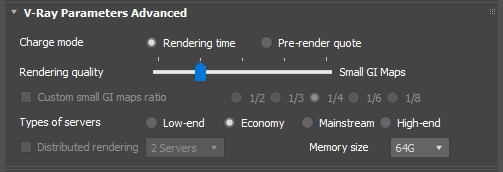
Charge Model — Used to select the billing mode, divided into Rendering time and Pre-render quote. Note: this option is remembered.
When Rendering time is selected, the following functions are available:
Render Quality — Render quality selection. Some users may encounter high costs when using lower versions of V-Ray for cloud rendering due to improper parameter settings. When lower rendering quality is acceptable, Renderwow can automatically optimize rendering settings to reduce rendering time and save costs. There are 5 levels in total. Higher levels include optimizations from lower levels. Note: this option is remembered.
-
Hi-Fi — High-fidelity rendering. No parameter optimization is performed during cloud rendering.
-
Small GI Maps — Small GI map mode. Automatically reduces the size of the Irradiance map generated in the cloud. The impact on rendering quality is minimal, and most images show no visible difference.
-
Conservative Optimization — Primarily enables DMC local subdivisions during cloud rendering; automatically changes Default geometry to Auto, etc.
-
Medium Optimization — Enables light cache for glossy rays during cloud rendering; disables light cache retrace.
-
High Optimization — Automatically reduces excessively high subdivision values during cloud rendering.
Custom Small GI Maps Ratio — Customizes the default optimization level for small GI map optimization. The smaller the value (e.g., 1/8), the higher the optimization. Note: this option is remembered.
Type of Servers — Server type, default is Economy. Low-end has the lowest rendering performance, High-end has the highest. Economy and Mainstream have similar performance. Lower performance means lower cost; higher performance means higher cost. All four modes have a rendering fee cap (excluding memory surcharge and distributed acceleration fees). Before reaching the cap, Low-end and Economy use linear time-based billing, while Mainstream and High-end use tiered billing. Note: this option is remembered.
Distributed Rendering — When enabled, each camera uses multiple servers with V-Ray distributed rendering to accelerate rendering. Select the number of servers from the drop-down list. When the server type is Low-end, up to 3 distributed servers are allowed with no distributed acceleration fee; when Economy, up to 2 distributed servers with no fee; when Mainstream and High-end, up to 10 distributed servers are allowed (recommended not to exceed 6). Each additional server incurs an extra 10% of the rendering fee as acceleration fee; with 10 servers, the maximum acceleration fee is 90%. Distributed rendering is more suitable for jobs with long rendering times and high resolutions; for small resolutions and short rendering times, the acceleration effect is not obvious and may even slow down. Use flexibly according to actual needs. Note: this option is remembered.
Memory Size — Memory size. Sets the minimum memory size of the cloud rendering server. Different server tiers may have different maximum memory capacities. The default value is selected based on the actual physical memory size of the submitting machine. Beyond 24 GB, each additional 1 GB incurs an extra 0.02 Render Point. This charge is independent of rendering time. Note: this option is remembered.
When Pre-render quote is selected, the following functions are available:

Optimize Render Settings — When enabled, automatically adopts Medium optimization render quality. The billing standard is 0.5 Render Point/Megapixel. When disabled, renders with Hi-Fi quality, billing standard is 1.0 Render Point/Megapixel. Note: this option is remembered.
V-Ray Progressive Image Sampler

When using progressive rendering, reasonable thresholds must be set; otherwise, cloud rendering may never finish. The default values for these three settings are read from the current scene.
Max. Subdiv — Sets the maximum subdivision for progressive rendering. When exceeding 100, the text turns red as a warning that the setting may be too high and could lead to excessively long rendering times.
Max Render Time (min) — Maximum render time in minutes. When the value is 0 (unlimited render time), the text turns red as a warning that the rendering time may be too long.
Noise Threshold — Noise threshold. When this value is below 0.01, the text turns red as a warning that the threshold is set too low and may lead to excessively long rendering times.
V-Ray Frame Buffer LUT

When the 3ds Max version is 2018 or later and the V-Ray version is 5.0, the V-Ray LUT-related API do not work. Users need to manually re-specify the LUT file in the submission window to ensure correct LUT effects during cloud rendering.
LUT File — LUT file path. Click the browse button to locate the LUT file in the file manager.
Reset — Resets the LUT file path.
V-Ray GPU Cloud Rendering Settings
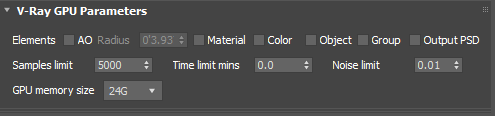
AO — AO channel. When checked, the AO channel is automatically generated during cloud rendering. Note: this option is remembered.
Radius — AO radius parameter. The parameter used when generating the AO channel in cloud rendering. The default value is generally sufficient. Note: this option is remembered.
Material — Material channel. When checked, the material channel is automatically generated in the cloud. Objects with the same material will have consistent colors in the generated channel. Note: this option is remembered.
Color — Color channel. When checked, the color channel is automatically generated in the cloud. Objects with the same color will have consistent colors in the generated channel. Note: this option is remembered.
Object — Object channel. When checked, the object channel is automatically generated in the cloud. Each object will have a unique color in the generated channel. Note: this option is remembered.
Group — Group channel. When checked, the group channel is automatically generated in the cloud. Objects belonging to the same group will have consistent colors in the generated channel. Note: this option is remembered.
Output PSD — Output PSD file. When checked, the cloud automatically merges the rendering results into layers in a single PSD file, and only one PSD file is downloaded. Note: this option is remembered.
Samples Limit — Default value is the setting in the scene.
Time Limit (mins) — Render time limit in minutes. Default value is the setting in the scene.
Noise Limit — Default value is the setting in the scene.
GPU Memory Size — Minimum GPU memory size for cloud rendering. The cloud will automatically allocate GPU machines that meet the VRAM requirements. Note: this option is remembered.
Corona Cloud Rendering Settings
This section describes the relevant parameter settings rollouts when the current renderer is Corona.
Corona Parameters Basic

AO — AO channel. When checked, the AO channel is automatically generated during cloud rendering. Note: this option is remembered.
Radius — AO radius parameter. The parameter used when generating the AO channel in cloud rendering. The default value is generally sufficient. Note: this option is remembered.
Material — Material channel. When checked, the material channel is automatically generated in the cloud. Objects with the same material will have consistent colors in the generated channel. Note: this option is remembered.
Color — Color channel. When checked, the color channel is automatically generated in the cloud. Objects with the same color will have consistent colors in the generated channel. Note: this option is remembered.
Object — Object channel. When checked, the object channel is automatically generated in the cloud. Each object will have a unique color in the generated channel. Note: this option is remembered.
Group — Group channel. When checked, the group channel is automatically generated in the cloud. Objects belonging to the same group will have consistent colors in the generated channel. Note: this option is remembered.
Output PSD — Output PSD file. When checked, the cloud automatically merges the rendering results into layers in a single PSD file, and only one PSD file is downloaded. Note: this option is remembered.
Pass Limit — Default value is the setting in the scene.
Time Limit (hours) — Render time limit in hours. Default value is the setting in the scene. When the value is 0 (unlimited render time), the text turns red as a warning that the rendering time may be too long.
Noise Level Limit — Default value is the setting in the scene. When the value is below 2 (i.e., less than 2%), the text turns red as a warning that the rendering time may be too long.
Corona Parameters Advanced
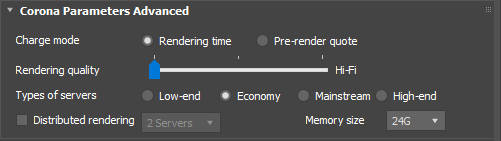
Charge Model — Used to select the billing mode, divided into Rendering time and Pre-render quote. Note: this option is remembered.
When Rendering time is selected, the following functions are available:
Render Quality — Render quality selection. Some users may encounter high costs when using Corona. When lower rendering quality is acceptable, Renderwow can automatically optimize rendering settings to reduce rendering time and save costs. There are 3 levels in total. Higher levels include optimizations from lower levels. Note: this option is remembered.
-
Hi-Fi — High-fidelity rendering. No parameter optimization is performed during cloud rendering.
-
Medium Optimization — During cloud rendering, automatic denoising is enabled; the time limit hours is set based on a maximum of 500 GHz·Hours of computing power consumed during the pure rendering phase of the job, etc.
-
High Optimization — During cloud rendering, the pass limit is set to a maximum of 200, the noise level limit is set to a maximum of 2%, and the time limit hours is set based on a maximum of 250 GHz·Hours of computing power consumed during the pure rendering phase of the job, etc.
Type of Servers — Server type, default is Economy. Low-end has the lowest rendering performance, High-end has the highest. Economy and Mainstream have similar performance. Lower performance means lower cost; higher performance means higher cost. All four modes have a rendering fee cap (excluding memory surcharge and distributed acceleration fees). Before reaching the cap, Low-end and Economy use linear time-based billing, while Mainstream and High-end use tiered billing. Note: this option is remembered.
Distributed Rendering — When enabled, each camera uses multiple servers with Corona distributed rendering to accelerate rendering. Select the number of servers from the drop-down list. When the server type is Low-end, up to 3 distributed servers are allowed with no distributed acceleration fee; when Economy, up to 2 distributed servers with no fee; when Mainstream and High-end, up to 10 distributed servers are allowed (recommended not to exceed 6). Each additional server incurs an extra 10% of the rendering fee as acceleration fee; with 10 servers, the maximum acceleration fee is 90%. Distributed rendering is more suitable for jobs with long rendering times and high resolutions; for small resolutions and short rendering times, the acceleration effect is not obvious and may even slow down. Use flexibly according to actual needs. Note: this option is remembered.
Memory Size — Memory size. Sets the minimum memory size of the cloud rendering server. Different server tiers may have different maximum memory capacities. The default value is selected based on the actual physical memory size of the submitting machine. Beyond 24 GB, each additional 1 GB incurs an extra 0.02 Render Point. This charge is independent of rendering time. Note: this option is remembered.
When Pre-render quote is selected, the following functions are available:

Optimize Render Settings — When enabled, automatically optimizes the maximum pass limit to 200, noise level limit to 2%, and sets the maximum render time to 15 minutes/Megapixel. The billing standard is 0.5 Render Point/Megapixel. When disabled, renders with Hi-Fi quality, billing standard is 1.0 Render Point/Megapixel. Note: this option is remembered.
FStormRender Cloud Rendering Settings
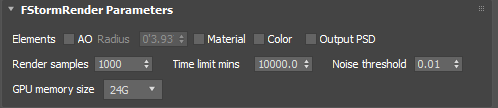
AO — AO channel. When checked, the AO channel is automatically generated during cloud rendering. Note: this option is remembered.
Radius — AO radius parameter. The parameter used when generating the AO channel in cloud rendering. The default value is generally sufficient. Note: this option is remembered.
Material — Material channel. When checked, the material channel is automatically generated in the cloud. Objects with the same material will have consistent colors in the generated channel. Note: this option is remembered.
Color — Color channel. When checked, the color channel is automatically generated in the cloud. Objects with the same color will have consistent colors in the generated channel. Note: this option is remembered.
Output PSD — Output PSD file. When checked, the cloud automatically merges the rendering results into layers in a single PSD file, and only one PSD file is downloaded. Note: this option is remembered.
Render Samples — Default value is the setting in the scene.
Time Limit (mins) — Render time limit in minutes. Default value is the setting in the scene.
Noise Threshold — Default value is the setting in the scene.
GPU Memory Size — Minimum GPU memory size for cloud rendering. The cloud will automatically allocate GPU machines that meet the VRAM requirements. Note: this option is remembered.
Mental Ray Cloud Rendering Settings

Lower versions of 3ds Max have the Mental Ray renderer built-in. Starting from version 2018, Arnold renderer is built-in instead.
Type of Servers — Server type, default is Economy. Low-end has the lowest rendering performance, High-end has the highest. Economy and Mainstream have similar performance. Lower performance means lower cost; higher performance means higher cost. All four modes have a rendering fee cap (excluding memory surcharge and distributed acceleration fees). Before reaching the cap, Low-end and Economy use linear time-based billing, while Mainstream and High-end use tiered billing. Note: this option is remembered.
Distributed Rendering — When enabled, each camera uses multiple servers with distributed rendering to accelerate rendering. Select the number of servers from the drop-down list. When the server type is Low-end, up to 3 distributed servers are allowed with no distributed acceleration fee; when Economy, up to 2 distributed servers with no fee; when Mainstream and High-end, up to 5 distributed servers are allowed. Each additional server incurs an extra 10% of the rendering fee as acceleration fee; with 5 servers, the maximum acceleration fee is 40%. Distributed rendering is more suitable for jobs with long rendering times and high resolutions; for small resolutions and short rendering times, the acceleration effect is not obvious and may even slow down. Use flexibly according to actual needs.