Scene Optimization
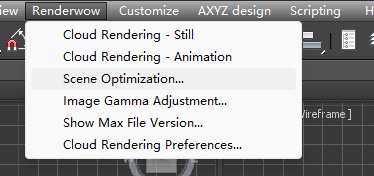
Click Renderwow menu → Scene Optimization to open the tool window.
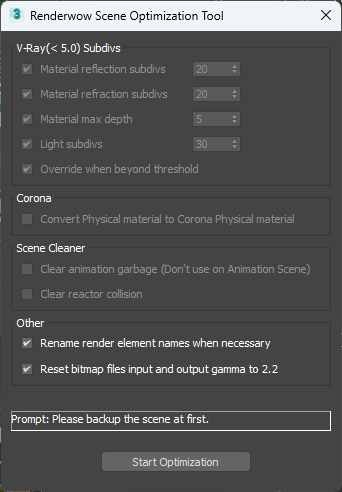
This tool is a scene optimization utility. After selecting the specific optimization items, click the Start Optimization button to directly modify the relevant parameters of the current scene. The specific functions include:
V-Ray (<5.0) Subdivs — This function is only effective when the current renderer is V-Ray and the version is lower than or equal to V-Ray Next. In such versions, materials, lights, etc. have subdivision parameters. This function can batch-modify subdivision values of materials, lights, etc. in the scene that are excessively high.
-
Material reflection subdivs — When selected, the material reflection subdivisions will be optimized. The default subdivision threshold is 20.
-
Material refraction subdivs — When selected, the material refraction subdivisions will be optimized. The default subdivision threshold is 20.
-
Material max depth — When selected, the max depth of materials will be optimized. The default max depth threshold is 5.
-
Light subdivs — When selected, the maximum subdivisions of lights will be optimized. The default maximum subdivision is 30.
-
Override when beyond threshold — When this option is selected, if the actual parameter exceeds the threshold set above, the actual parameter will be automatically modified to the default threshold. When this option is not selected, all parameters in the scene will be modified to the default threshold.
Convert Physical material to Corona Physical material — This option is only effective when the current renderer is Corona. Corona versions 12/13 may produce incorrect results when rendering Physical Materials. When encountering such issues, you can use this function to convert the Autodesk Physical Materials in the scene to Corona Physical Materials to resolve the problem.
Clear animation garbage (Don’t use on Animation scene) — This function removes management nodes such as Motion Clips, animation layers, and retimers from the Track View in the scene, which can reduce scene file size and improve opening speed, etc.
Clear reactor collision — Clear the collision data stored in the reactor of the current scene, which can reduce scene file size and improve opening speed and rendering speed.
Rename render element names when necessary — When the render element list contains render elements with duplicate names, or names containing illegal characters, it may prevent render results from being generated. This function can automatically rename incorrect render element names.
Reset bitmap files input and output gamma to 2.2 — In higher versions of 3ds Max, the input and output Gamma cannot be set through Preferences, but certain scripts may have modified the Gamma value to a special value, resulting in incorrect render outputs. This function can restore the default input and output Gamma values in 3ds Max.